

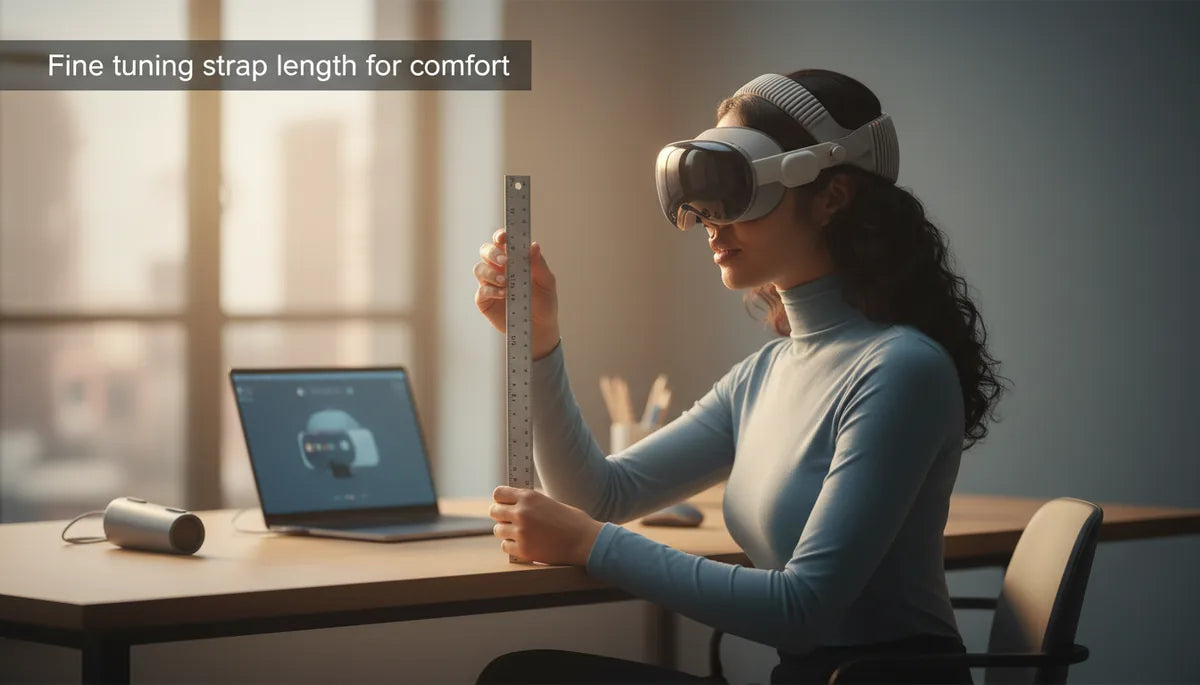
How to Tune Your Quest 2 Strap Length for a Secure, Pressure‑Free Fit During Long Sessions
Comfort in VR is more than padding and foam—it's precision. The length and tension of your Quest 2 straps determine how weight is distributed across your crown, temples, and occiput, and that distribution decides whether you play for an hour or skip after ten minutes because of hotspots, slippage, or blur. This guide gives you a measurement‑driven, practical process to set strap length and tension so the headset stays stable and comfortable through long sessions. ⏱️ 11-min read
Expect clear examples, step‑by‑step installation, micro‑adjustments that matter, troubleshooting for common problems, and maintenance tips to keep any strap—stock, Elite, or third‑party—working at peak comfort. Whether you wear glasses, have long hair, or pair your headset with a rear battery pack, you’ll find actionable cues and test routines to dial in a pressure‑free fit.
Baseline impact: how strap length affects comfort and stability
The strap length is the foundation of fit. Too long and the headset moves; too short and it pinches. What happens physically is straightforward: strap length shifts where the headset’s weight rests. Length that’s too short pulls the front of the headset tighter to the forehead and temples, concentrating force into small contact patches that become hot spots and headaches. Length that’s too long moves the load onto the rear strap or lets the headset tilt forward, so quick head turns cause lenses to shift and the image to blur.
A correct length creates an even tension network between the top strap, the side straps, and the rear connection. The headset should feel supported—nearly weightless—rather than clamped. That balance keeps lenses aligned with your eyes during movement, reduces cheek and temple pressure, and prevents the subtle rocking that makes you constantly re‑adjust mid‑game. Players who pair a well‑tuned strap with weight‑relief accessories (rear counterweights or stands like the FlitLift GraviPro) report extended comfort because the headset’s contact points share the load rather than focusing it. In short, strap length defines where the pressure lives: move it a few millimeters and you can turn a painful session into a comfortable marathon.
Strap options: stock comfort strap, Elite Strap, and third‑party choices
Choosing the right strap system affects how finely you can tune length, how stable the headset stays, and how comfortable it is during long sessions. The stock Comfort Strap that ships with the Quest 2 is light, soft, and simple: fabric loops, a rear buckle, and an adjustable crown pad that slides forward or back. It’s easy to use and quick to swap, but under sweat or intense movement it can loosen and require readjusting.
The Elite Strap moves the game toward micro‑adjustability. Its rigid curved frame sits higher on the head and includes a rear dial for precise tensioning; top and side connections lock into place so the length you set stays put for hours. That rigidity reduces halo tilt and gives a more stable optical alignment. For many players the Elite Strap is the difference between frequent front‑edge pinching and consistent clarity.
Third‑party options (BoboVR, Kiwi Design, and others) often combine the best of both worlds: extra padding, rail or two‑part systems, rear dials, and hook‑and‑loop adjustments for granular control. These designs typically spread weight more evenly and can be friendlier for glasses wearers or those who want to add a rear battery. When evaluating options, compare how the strap attaches to the headset, whether the length adjustments are incremental or continuous, and how the padding and crown pad placement match your head shape. Pick the approach that matches how much tuning you want to do—simple fabric, a rigid dialed frame, or a hybrid with fine control.
Measuring for the right length: head size, glasses, and wear patterns
Start by measuring your head—this gives you a baseline rather than guessing. Use a flexible tape measure and wrap it around the widest part of your skull: roughly halfway between the ears and the hairline. Record the circumference in centimeters or inches. For a fuller picture, measure two positions: one across the crown and temples (where the side straps will bear) and another across the forehead and cheeks (where the front of the headset sits). These two numbers reveal front‑to‑back differences in head shape that influence how you’ll set strap length.
Translate that into strap behavior by noting how the strap sits when your head measurement is matched. With the headset on, loosen everything and let it settle naturally; then bring the side straps in until the headset feels supported but not pinching. Count the notches, clicks, or dial turns required from a fully loose position—this numeric habit makes future adjustments repeatable. If you typically need three notch increments to reach comfort, write that down.
Glasses, hairstyles, and ear positioning change effective fit. Glasses add frame thickness at the temples; position the top strap above the frames to avoid pressure on lenses. If you have long hair or a bun, the crown pad may sit differently; try the strap with hair both down and up and note the delta in notches or dial turns. The goal is a strap length you can reproduce quickly: measure, test with glasses on, and build a small log of “starting settings” so you don’t begin each session from scratch.
Installation and initial adjustment: a beginner-friendly step-by-step
Replacing or installing a strap is simple once you know the order. Follow this beginner‑friendly sequence to attach a new strap and perform your first pass at a secure, pressure‑free fit:
- Attach the side connectors: Locate the left and right strap connectors on the headset. Slide each connector into its slot until you hear a click; tug gently to confirm they’re seated. For straps with integrated top pieces, click the top into the rear mount as well.
- Set the crown pad and top strap: With the headset off, place the crown pad roughly centered over where you want the rear to rest. If the strap has a dial, leave it loose for now.
- Don the headset and settle weight: Put the headset on, let it rest naturally, and keep straps loose. This lets the headset find its neutral position on your face and nose bridge.
- Tighten the rear first: Bring the rear strap in until the headset stays in place when you nod gently. Aim for support from the occiput rather than a squeeze.
- Equalize the side straps: Tighten both side straps in even increments until the lenses are close to your eyes and the image is clear without pressing the cheeks or temples.
- Fine tune the top strap: Adjust the top strap so it lifts a tiny fraction of the headset’s weight off your face. The forehead should feel supported, not compressed.
Symmetry matters—check both sides visually and by feel. If your strap has a rear dial, small turns can yield big changes, so proceed slowly. After this initial setup, play for 10–15 minutes and recheck for hotspots; that first session will tell you whether to loosen or tighten a notch or two.
Fine-tuning techniques for a pressure-free fit
Fine‑tuning is a process of tiny moves and controlled tests. Treat adjustments like calibrating an instrument: small increments, then test. Here are the practical techniques that separate “good enough” from “all‑day comfortable.”
- Micro‑adjustments matter: Make changes of one notch, half‑turn on a dial, or a few millimeters of strap movement. Larger changes can create new pressure points; incremental moves let you find the equilibrium.
- Balance top vs. side tension: If the front digs in, loosen the top strap slightly and increase side strap tension a bit so weight is redistributed toward the crown. If the sides press cheeks, shift tension to the top and rear to widen the contact area.
- Use movement tests: Stand, shake your head, turn quickly left and right, and perform a few squats or arm swings—anything that replicates in‑game motion. If the image shifts noticeably, tighten the rear dial by a small increment and re‑test.
- Time‑based comfort test: Wear the headset for 15–20 minutes uninterrupted. Look for red marks, numbness, sliding, or blurred edges. Red marks after five minutes indicate over‑tightening; blur during motion indicates under‑tension or front‑heavy fit.
One practical cue: when correctly tuned, you should be able to open your mouth wide and the headset should not shift. If it moves, add a touch of rear or side tension. Also learn your “default setting” in notches or dial turns—this saves time and keeps your tuning consistent session to session.
Special considerations: glasses wearers and weight distribution
Glasses and weight distribution change the rules. Frames add thickness near the temples and can become painful if the side straps press inward. To protect frames and maintain optics, position the top strap to clear the upper arms of your glasses so pressure rests on the crown rather than the lenses. If frames still press, ease side strap tension a notch and compensate with a tighter rear dial or slightly higher crown pad placement.
Long VR sessions magnify front‑heavy discomfort. Many players use simple counterweights or battery packs attached to the rear strap to shift the center of mass back over the occiput. Even a small rear weight—200–400 grams—can noticeably reduce forehead pressure. If you use a battery pack, mount it low and centered on the rear pad to avoid creating a new hotspot. The Elite Strap and many third‑party designs anticipate this by offering attachment points and reinforced rails.
Other practical tips for glasses wearers: use thinner lenses frames if possible, pick pads with slightly wider temple clearance, and keep a microfiber cloth handy to prevent smudging from shifted frames. If you frequently move between glasses and non‑glasses sessions, log two sets of strap settings (e.g., “glasses: rear +2, side +1 notch; no glasses: rear +0, side -1 notch”) so you can switch quickly without trial and error.
Maintenance and longevity: care, wear, and when to replace
Straps change over time. Fabric stretches, foam compresses, and dials can loosen. A simple maintenance routine extends life and keeps fit predictable. Wipe straps and pads with a damp microfiber cloth after sweaty sessions; for heavier cleaning, use a mild soap solution and avoid saturating foam. Let components air dry fully before storing. Check metal clips and plastic connectors periodically for cracks or deformation.
Inspect your strap every few months if you use VR frequently. Look for fraying edges, padding that doesn’t spring back, or a dial that slips under tension—these are signs the strap is approaching end of life. Depending on use, many users replace fabric straps or pads every 12–24 months; rigid Elite‑style frames last longer but can fail at connection points if frequently removed and reattached roughly.
Keep a small log of when you last adjusted settings and how many hours you’ve logged. If you notice the headset “creeping” slack after every session or if you need significantly more tension than before to achieve the same stability, those are practical signals to replace straps or upgrade to a more stable system. Well‑maintained straps save time and money; predictable starting settings mean less fiddling and more playtime.
Troubleshooting and common pitfalls
Even with care, straps can misbehave. Here are common problems and practical fixes so you don’t grind through comfort trials.
- Strap creep (loosening during play): Tighten the rear dial slightly and ensure side straps have even notches. Sweat can soften fabric straps—consider a sweat‑absorbent cover or an Elite/rigid option if this is frequent.
- Persistent pressure points: Loosen the offending strap by one notch and rebalance. If the temple or forehead still hurts, reposition the crown pad forward or backward a few millimeters and retest.
- Slippage during active games: Increase rear tension first, then top strap minimally. If slippage continues, consider a strap with a more rigid frame or add a rear counterweight to retune balance.
- Image blur during motion: This usually indicates lens misalignment from insufficient tension. Tighten side straps evenly or micro‑turn the rear dial until the view remains crisp during rapid head movement.
- When to revert to stock: If a third‑party strap creates new issues (poor connectors, mismatch with headset geometry), revert to the stock Comfort Strap to confirm the problem lies with the accessory. The stock strap is a useful diagnostic baseline.
Finally, if adjustments and smarter accessories don’t solve the problem, check headset seating (facepad fit) and eye relief—sometimes what feels like a strap problem is an optical alignment issue. A methodical approach—change one variable at a time and log the result—gets you to a reliable, comfortable setup faster than random tweaks.
Next step: measure your head, choose the strap system that matches how much control you want, and follow the installation and micro‑adjustment routine. With a few precise tweaks and a short 15–20 minute validation session, your Quest 2 can go from fidgety to fatigue‑free—letting you stay immersed, focused, and comfortable for longer play sessions.







Share:
How battery pack placement affects Quest 2 center of gravity and neck strain
Lightweight VR Headsets vs Comfort: Do Fewer Grams Improve Long‑Session Comfort