

How to Inspect, Clean, and Replace Meta Quest 2 Cushions — A Practical Guide to Comfort, Hygiene, and Longevity
If you use a Meta Quest 2 regularly, the facial cushions are the small, unsung components that determine whether long sessions feel great — or leave you sweaty, sore, and scrambling for replacements. This guide walks you step-by-step through inspecting cushions for wear and contamination, cleaning them safely, deciding when cleaning is no longer enough, choosing compatible replacements, and installing them correctly. The goal: extend comfort and hygiene while protecting your headset’s fit and lifespan. ⏱️ 12-min read
Every section is practical and experience-driven: simple inspection checklists, material-aware cleaning routines, clear replacement signals, and installation tips that avoid common pitfalls. Read this before you reach for harsh chemicals, toss cushions in a washing machine, or settle for a poor-fitting third-party pad.
Inspecting Cushions for Wear and Contamination
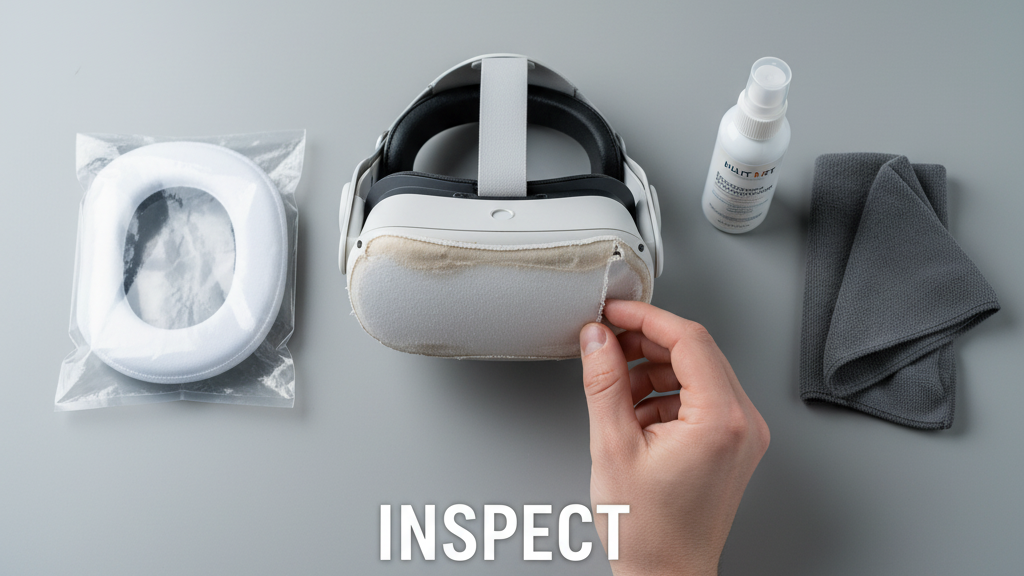
Start with a careful visual and tactile inspection. Remove the headset from storage and place it face-up on a soft, clean surface. Work systematically: check the rim, forehead area, nose ridge, and the inner oval where your face rests. Look for these clear visual signs:
- Fabric issues: pilling, thinning, loose threads, or torn seams along the edge.
- Surface damage: cracks in synthetic leather or flaking on vinyl-style covers.
- Foam condition: press the foam firmly for five seconds; it should spring back within a few seconds. If it stays compressed, feels spongy, or collapses into grooves, the foam has lost resilience.
- Attachment wear: loose clips, stretched tabs, or gaps where the cushion no longer seats evenly against the facial interface.
Contamination cues are equally important. Sweat stains, a slick oily surface from skin oils, or a persistent musty smell can indicate bacteria or mold. Mold often appears as small black or green specks, usually accompanied by that damp odor. If you detect any of these, treat the area as compromised: spot-clean minor sweat stains, but plan replacement for cushions with visible mildew or odors that persist after cleaning. Persistent contamination matters not just for comfort but for skin health — acne, irritation, or allergic reactions can follow prolonged use of degraded cushions.
Tip: make a quick photo log on your phone while inspecting. Take one picture per cushion every three months; over time the images reveal slow compression or fraying you might otherwise miss.
Cleaning Your Quest 2 Cushions: Materials, Steps, and Drying
Cleaning depends on the cushion material. Common surfaces are fabric (velour or microfiber), foam cores covered by fabric, and synthetic leather (faux leather/vinyl). Each reacts differently to moisture and cleaners, so match the method to the material.
Materials and what to use
- Fabric covers: mild liquid detergent diluted in warm water, applied with a soft microfiber cloth or a soft-bristled brush for stubborn spots.
- Foam cores: never soak. Surface wipe only; use minimal moisture and avoid submerging the foam itself.
- Synthetic leather: a gentle soap-and-water solution works well; avoid oils, alcohol, and solvents which crack or strip finishes.
Step-by-step cleaning routine
- Power down the headset and place it on a clean microfiber surface. Remove the cushions following the manual or by gently peeling them back from their clips.
- Dry dust wipe: use a dry microfiber cloth to remove loose dust and skin oils.
- Spot clean: dip a corner of the cloth in the diluted detergent, wring well, and blot stains. Don’t scrub aggressively — work from the outside of a stain inward.
- Full wipe: give the entire surface a light wipe to even out appearance and remove residue. For foam, keep the cloth barely damp; do not force liquid into seams.
- Rinse: wipe again with a clean, damp cloth (water only) to remove soap residue.
Drying is critical. Air-dry cushions away from direct sunlight and heat sources. Use a fan or gentle airflow to speed drying; avoid hair dryers or radiators that deform foam. Make sure cushions are completely dry — inside and out — before reattaching. Any trapped moisture can encourage mildew and permanent foam damage. Store cleaned cushions in a dry, breathable container (not airtight) until reinstallation.
When to Replace Cushions vs Clean: Signs of Deterioration
Deciding whether to clean or replace cushions comes down to three practical questions: Is the cushion structurally sound? Will cleaning remove the problem? And does the cushion still attach securely and provide an even seal? If the answer to any of these is “no,” replacement should be next.
Replace cushions when you see structural deterioration: crushed or collapsed foam that doesn't recover, large tears or seam separation, and deformed shapes that make the headset tilt or sit unevenly. These undermined supports change the seal around the lenses and cause pressure points. A cushion that no longer supports the same contour will cause the headset to press on your nose or cheeks in ways that create discomfort and even visual misalignment.
Persistent odors are also a strong replacement signal. If a thorough cleaning and complete drying do not remove a musty or sour smell, the foam has likely absorbed sweat and bacteria. Odor can indicate microscopic mold or bacteria embedded deeper than surface cleaning can reach — and those are not safe to wear against your skin long-term.
Attachment failures are another red flag. Loose clips, stretched elastic, or cushions that slip out of alignment during use change the headset’s seal. If you need to constantly readjust the cushion during play, replacement will restore fit. For mild, early-stage issues, a deep clean and a short rest period (24–48 hours in fresh air) can postpone replacement, but plan on swapping cushions as a preventative within a few months if you use your Quest daily.
Choosing Replacement Cushions: Compatibility, Materials, and Fit
When shopping for replacement cushions, your two priorities are compatibility with Quest 2 mounting points and choosing materials that match your comfort and hygiene needs. Start with official Meta replacement cushions where possible — they guarantee fit, lens clearance, and attachment type. But several reputable third-party makers (Kiwi Design, VRCover, and similar brands) offer attractive alternatives; just verify the product explicitly lists Quest 2 compatibility.
Key selection factors:
- Fit: Confirm the cushion is listed for Quest 2 or the Quest family. Look for photos showing precise edge clips and inner rim alignment. Read user reviews to ensure lens clearance is unaffected — cushions that sit too high or too low can cause lens fogging or obstruct peripheral vision.
- Foam density: Denser foam resists collapse and lasts longer but can feel initially firmer. Medium-density foam is a popular compromise — supportive without feeling harsh. Some premium cushions use multi-density or contoured layers that direct pressure away from the nose and spread load across the cheeks and forehead.
- Cover material: Velour, microfiber, and moisture-wicking fabrics are softer and cooler than vinyl. Faux leather is easy to wipe but traps heat. If you sweat a lot, prioritize breathable, washable covers or those with cooling mesh panels.
- Antimicrobial finishes: These can reduce odor and bacterial growth, but check the product’s skin-safety claims. Antimicrobial doesn’t replace routine cleaning.
- Strap and accessory compatibility: Some cushions integrate with specific straps or headbands; make sure yours will not block the strap’s mount or interferes with the halo band if you use one.
Finally, factor in warranty and return policies. Trusted sellers often offer a trial window; use that to test fit and comfort. If a cushion feels too firm or doesn’t seat evenly, return it rather than force a poor fit that could harm long-term comfort.
Installation Guide for Replacements: Step-by-Step
Installing a new cushion is straightforward if you prepare carefully and work methodically. Have a clean workspace, a microfiber cloth, and good lighting. Power off the headset and unplug any cables. Lay the Quest face-up on a soft surface to protect the lenses and frame.
- Inspect the replacement: Confirm you have the correct left/right pieces (if applicable) and any mounting clips. Compare them to the originals to note alignment features.
- Remove the old cushion: Gently lift from the outside edge and work toward the center, easing clips out of their slots. Keep even pressure and avoid tearing. If the cushion is glued or stubborn, don’t force it — look for hidden tabs or consult the manual.
- Clean the frame: Wipe the facial interface with a dry microfiber cloth to remove oils and dust. A lightly damp cloth may be used if needed, but ensure the frame is dry before installing the new cushion.
- Align the new cushion: Match notches, tabs, or guide holes on the cushion to the headset frame. Start at one side and press in small sections along the perimeter so the cushion seats evenly.
- Seat all clips: Work your way around the faceplate, pressing firmly but gently until each clip clicks or the edge lies flush. Avoid over-stretching the material; if you feel resistance, realign rather than force it.
- Verify fit: Check for gaps, bulges, or raised corners. Flex the edge lightly to confirm the cushion holds without creasing. Put the headset on for a short test to verify pressure distribution and lens clearance; if anything feels off, remove and reseat the cushion.
Common snag: if the cushion shifts after installation, a small build-up of dust on the mating surface can prevent full seating. Remove the cushion, clean both surfaces, and reinstall. If clips are damaged or missing, replace them before using the headset — makeshift fixes can damage the frame.
Maintenance Schedule and Best Practices for Longevity
Small, consistent habits extend cushion life dramatically. Start with a simple, realistic maintenance schedule aligned to your use pattern:
- After each session: Wipe the cushion briefly with a dry microfiber cloth to remove sweat and oils.
- Weekly (for daily users): Do a deeper wipe with a mild soap solution; rinse with a water-only cloth and air-dry fully before next use.
- Monthly or quarterly: Remove the cushions and inspect for compression, seams, and attachment integrity. If you run regular multiplayer sessions or demo the headset to others, consider a short disinfecting routine with a product safe for your cushion material.
Storage and environment matter. Keep the headset in a cool, dry spot away from direct sunlight and heat; never leave it in a hot car. If you store cushions separately, place them in a breathable bag or container to avoid trapping moisture. Consider a dedicated case or stand that keeps the headset upright and lets air circulate around the cushions.
Small protective investments pay off: removable fabric covers or washable face pads are inexpensive and make cleanup faster. Wicking replacements reduce sweat contact with foam, slowing odor and degradation. If you often share the headset, use disposable face covers or replaceable fabric liners to maintain hygiene between users.
Finally, document replacements and checks. A quarterly entry in a maintenance app or calendar reminding you to inspect cushions keeps replacement cycles predictable — and prevents the discomfort of unexpectedly degraded pads during a long session.
Weight, Comfort, and Cushions: How Cushion Type Affects Wearability
The cushion is the interface that decides how the headset’s weight is distributed across your face. The wrong cushion can concentrate pressure on the nose, temples, or cheeks, turning an otherwise comfortable setup into a strain-inducing experience. Understanding how density, thickness, and materials affect fit will help you pick cushions that balance comfort with support.
Foam density determines how a cushion compresses and how pressure is spread. Low-density foams feel plush but compress rapidly, losing support and causing the headset to sit lower, which increases lens-to-eye pressure. High-density foams resist compression and maintain seal but feel firmer against the skin; some users report pressure headaches if the foam is too rigid.
Thickness and contour also matter. A thicker cushion raises the headset away from your face, which can improve peripheral vision clearance but may shift weight onto the forehead. Contoured cushions and those with graduated density — firmer near the edge, softer where it contacts the nose — distribute pressure more evenly and reduce hotspots. If you use a top strap or halo band, thicker or firmer face pads can complement the strap to balance weight rather than having the strap bear all the load.
Cover material determines heat and moisture behavior. Breathable fabrics and perforated foams improve airflow and reduce sweat build-up; they’re a top pick for long sessions. Non-breathable options, like vinyl, are easier to wipe but trap heat and moisture. If you sweat heavily, prioritize ventilated materials or a replaceable liner so you can swap it out between sessions.
Practical tip: if you’re undecided, buy a medium-density, breathable cushion as a baseline. Try it for a week. If you feel pressure on the bridge of your nose, swap to a contoured design. If the headset feels too loose or shifts during play, move to a slightly denser pad. Small changes in thickness (5–10 mm) can make a big difference in perceived comfort.
Common Mistakes, Quick Fixes, and Real-World Case Notes
Knowing what not to do is as valuable as following best practices. Here are the frequent errors and how to fix them, drawn from real user experiences:
- Machine washing foam: users who tossed foam cores or glued covers into the washer end up with misshapen cushions. Fix: never machine-wash foam. Spot-clean covers only and air-dry fully.
- Using harsh chemicals: bleach, acetone, or ammonia crack and discolor covers and leave residues that irritate skin. Fix: use mild detergent and test any cleaner on an inconspicuous seam first.
- Ignoring odors: letting a faint smell linger often leads to deeper microbial growth. Fix: treat early — clean, air thoroughly, and replace if odor persists after two full drying cycles.
- Poor replacement shopping: buying cushions that claim “universal fit” without specifying Quest 2 compatibility can lead to lens clearance issues. Fix: buy cushions labeled for Quest 2 or from reputable third-party sellers with return windows.
Quick fixes for immediate needs: a temporary washable fabric cover can provide short-term relief if your cushion is in the mail. Baking soda sachets stored near cushions (not touching) can help absorb ambient odors during storage, but they don’t disinfect. For pressure spots during a single long session, a thin foam thin pad or folded microfiber cloth under the cushion can redistribute pressure temporarily — but use only as an emergency measure, not a permanent solution.
Anecdote: a high-sweat user added an antimicrobial velour cover and wiped after each session; cushions lasted twice as long compared with vinyl covers. Another user who frequently demoed the headset replaced cushions every three months to maintain hygiene and avoid mid-demo discomfort. Both approaches work—choose what matches your usage and priorities.
Next step: do a quick inspection now. If you find compressed foam, visible mildew, persistent odor, or loose attachments, order a Quest 2–specific replacement cushion and schedule a calm 20-minute upgrade session — you’ll restore comfort and protect both your skin and headset in one go.







Share:
Upgrading Quest 2 Comfort: A Practical Guide to Third-Party Straps and Cushions
Facial interface and gasket upgrades to maximize Quest 2 comfort and reduce fatigue