

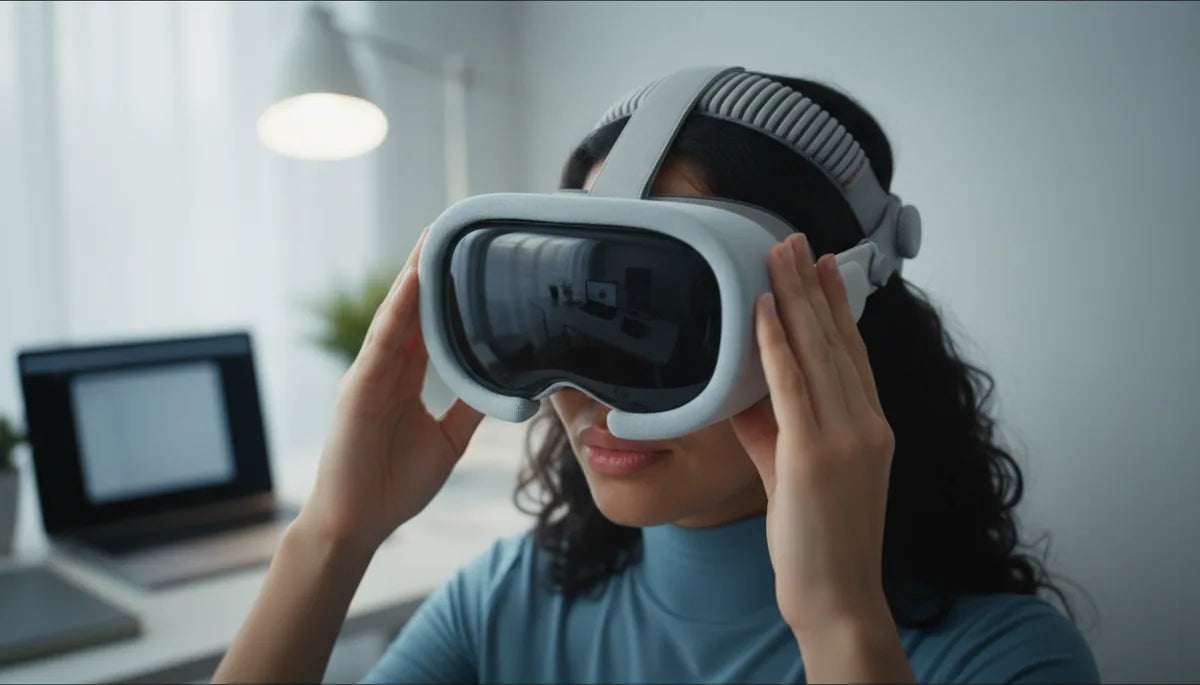
How the Meta Quest 2 Comfort Strap’s Head Cushion Redistributes Pressure and Tightens the Seal for Longer VR Sessions
The Meta Quest 2 comfort strap’s head cushion is more than a soft upgrade — it’s an engineered contact interface that changes how the headset touches your head and face. For many VR gamers, the difference between a 30‑minute session and a comfortable two‑hour session comes down to how pressure is spread across the crown and how reliably the facial seal holds during movement. ⏱️ 9-min read
This article walks through what the cushion actually does, how it compares to the stock and Elite options, how to install and micro‑adjust it for your head, and practical maintenance steps. Expect concrete examples (for glasses wearers, streamers, and competitive players), actionable adjustments you can make mid‑session, and guidance on light leakage and fog reduction so your next session stays immersive longer.
How the head cushion reduces pressure and improves the seal
At a glance, the head cushion looks like padding — but it functions as a load‑spreading mechanism. The stock Quest 2 strap places most of the headset’s load on a narrow band across the forehead, which quickly becomes a "hotspot" where skin feels pinched or sore. The comfort strap’s cushion reshapes that contact area: instead of one concentrated point, you get a wider, contoured patch that follows the crown’s curves and gently redistributes force across a broader surface.
That wider contact area reduces peak pressure. Think of it like standing on a single thorn versus a foam mat: the same overall weight, but the mat spreads the force so no single point gets hammered. The cushion’s foam compresses gradually rather than bottoming out abruptly, maintaining consistent contact as you nod, turn, or lunge in a rhythm game. This consistency matters for the facial interface beneath the headset — when crown pressure is even, the foam face gasket keeps steady contact around the nose and cheeks, closing off gaps where air or light might sneak in.
In practice this means fewer mid‑session readjustments and less rubbing or sliding that breaks immersion. You’re less likely to feel a sharp press behind the head or on the brow after an hour of play. For activities that require quick head turns — shooters, rhythm games like Beat Saber, or intensive fitness titles — that steadier contact directly reduces mask shift and the need to refocus the lenses constantly.
Cushioning vs. standard strap and Elite Strap
Understanding how the cushion stacks up against the standard strap and the Elite Strap helps pick the right setup. The stock strap is minimal: light padding and simple tensioning mean the geometry of the band and tightness determine fit. It’s fine for short sessions, but it tends to concentrate load along narrow forehead and temple lines. Over time that concentrated pressure produces fatigue and small seal gaps.
The Elite Strap approaches the problem from the other end: a rigid frame with a dial mechanism that locks fit in place. That rigidity improves stability and reduces slippage, but it trades adaptability for firmness. If your head shape or size doesn’t match the Elite’s contact points exactly, you can get distinct pressure zones — a hard press at the forehead, cheekbones, or the occiput — especially for smaller heads or for players who wear glasses.
The cushioned comfort strap aims for a middle ground: it increases surface area with a plush pad and softer foam that conforms to the head. Compared to the standard strap it spreads force more evenly; compared to the Elite Strap it’s more forgiving and adaptive. The result for most users is fewer pressure hotspots, a more uniform facial seal, and reduced need to retighten mid‑game. For streamers or creators who need steadier footage, that adaptive compliance helps keep the camera framing consistent because the headset doesn’t shift when you turn your head quickly.
Installing and aligning the cushion for beginners
Installing the head cushion is straightforward, but alignment matters for even contact and a wobble‑free seal. Follow these steps to set it up right the first time:
- Unpack and inspect: Remove the cushion and confirm there are no protective films on attachment points. Identify the primary fasteners along the back edge (snap hooks or Velcro strips).
- Pre‑position the strap: Lay the comfort strap flat and hold the cushion so it faces the inside of the strap, with any seam toward the rear.
- Secure inner fasteners first: If there are multiple attachments, press the inner clips or Velcro points together first. You should feel or hear a positive engagement (a click or firm grab).
- Seat the outer points: Work outward from the center, smoothing the pad so it lies flat without twists. Confirm the cushion is symmetrically centered over the crown.
- Mount on the headset: Attach the strap to the headset per the strap’s instructions, set initial tension so the headset sits comfortably on your face but not tightly pressed.
- Verify balance and wobble: Put the headset on and perform gentle nods and head turns. If the unit wobbles or tilts forward, adjust the cushion slightly forward or back, or reorient the strap’s top angle.
Tip: center the cushion so the widest part sits where your skull naturally curves — not directly over the bony ridge behind the forehead. This alignment lets the foam compress evenly and keeps the facial gasket aligned with your cheeks and nose.
Adjustments for comfort during long sessions
Long VR sessions are won in the small adjustments. The cushion turns the strap into a dynamic element you can tune without removing the headset. Rather than one big tightening, try these micro‑adjustments every 20–30 minutes to prevent hotspots and preserve the seal.
- Loosen and retighten periodically: A quick release-and-reapply move shifts contact zones so no single spot sustains continuous pressure. You don’t need to remove the headset — just ease tension, let the cushion settle, and retighten.
- Micro‑reposition by millimeters: Slide the cushion up or down a few millimeters to move pressure away from a tender patch. Slight lateral shifts can relieve temple or ear pressure for glasses wearers.
- Balance front and back: If the front of the headset feels heavy, raise the strap slightly higher on the crown or loosen the rear retention a touch to move more load rearward. Conversely, if the back pulls too much, increase front tension incrementally.
- Read discomfort signals: Numbness, tingling at the cheeks, or fogged lenses are cues to stop and tweak. Change one variable at a time (tension, cushion position, strap angle) and test with head movement.
For glasses wearers: aim for a looser front fit that avoids nose pressure and a cushion position that increases rear support. This reduces how much the frame of your glasses presses into the face while maintaining the facial gasket’s integrity.
Weight distribution and long-session comfort
Weight distribution is the silent factor that dictates how long you can play before your neck or jaw starts complaining. The Quest 2 tends to be front‑heavy because of its lenses and electronics; the head cushion acts as a practical counterbalance by increasing rear and crown contact area so the headset doesn’t constantly tilt forward.
By guiding support across a larger crown surface, the cushion reduces the torque that pulls the front of the headset down into your nose and cheeks. That torque reduction does two things: it diffuses facial pressure (so cheek and forehead soft tissues aren’t compressed as hard), and it reduces neck muscle activation required to hold your head steady. You’ll find you’re less likely to thrust your chin forward to compensate — a small posture change that quickly compounds into neck strain.
For high‑intensity sessions (vigorous fitness games or competitive play), pairing the cushion with small weight‑management tweaks can help. Add mild rear counterweights only if you still notice forward tilt after cushion adjustments; otherwise, use cushion positioning and strap angle to fine‑tune balance. Players who stream for long stretches often report that a properly centered cushion translates directly into steadier head tracking, fewer recalibration moments, and less jaw clenching during tense gameplay.
Seal quality, fogging, and light leakage considerations
A stable facial seal is crucial for visual clarity and immersion. The head cushion helps by ensuring the headset gasket meets the skin consistently — not intermittently — across the nose, cheeks, and temples. When crown support is even, the face gasket compresses uniformly, which reduces micro‑gaps where room light can slip in or warm breath can escape toward the lenses.
Light leakage is often most noticeable at the temples and cheek edges. The cushion’s extra pressure across the crown minimizes lateral lift that would otherwise pull gasket edges away from skin during quick turns. Less leakage means fewer distracting bright strips in the periphery and a darker, more consistent in‑head image — a subtle but meaningful boost to immersion.
Fogging is primarily caused by air exchange between your warm breath and the cooler lens surfaces. A steadier seal lowers that exchange. If you still see fogging with intense movement, try these practical mitigations: reposition the cushion slightly to close the upper nose gap, dry the face gasket before sessions if you sweat, and use short micro‑breaks to let lenses return to ambient temperature. For glasses wearers, ensure the cushion doesn’t overcompress the gasket against your spectacle frames — that can create a channel for warm air to rise into the lens zone.
Maintenance, compatibility, and accessories
Care and compatibility determine how long the cushion remains effective. Regular cleaning keeps foam breathable and prevents odor and breakdown. Wipe the cushion’s surface after sweaty sessions with a soft cloth and mild soap solution; avoid saturating the foam. Let it air dry completely before storage. For deeper cleaning, follow the manufacturer’s instructions — many cushions use removable covers or wipeable materials for hygiene.
Replacement options: cushions compress over time. If you notice the foam bottoms out or the fabric gets permanently misshapen, it’s time to replace it. Official replacements preserve the original fit profile, while reputable third‑party pads can offer different firmness or cooling fabrics. If you choose third‑party accessories, check attachment compatibility (snap hooks vs. Velcro) and how the pad aligns with the Quest 2 face gasket.
Compatibility notes: the cushion is designed for the Meta Quest 2 comfort strap. It may fit some third‑party straps that match the same attachment geometry, but confirm before buying. If you plan to add a rigid counterbalance like a rear weight or a modular Elite Strap hybrid, test the combination for new pressure zones — even small changes in weight distribution can require re‑centering the cushion.
Accessories to consider: breathable covers for sweat management, small rear counterweights for extreme front‑heavy setups, or thin foam inserts that fine‑tune cushion height for unusual head shapes. For streamers, a lightweight stabilizer or camera‑mount clearances can preserve microphone positioning without upsetting the cushion’s contact pattern.
Next step: install and test — take 10 minutes to fit the cushion, perform a short movement test, and make a single micro‑adjustment. Small changes now pay off with longer, more comfortable VR sessions later.







Share:
Vision Pro strap design review: support, weight distribution, and comfort implications
Padding materials that maximize VR headset comfort and reduce fatigue