

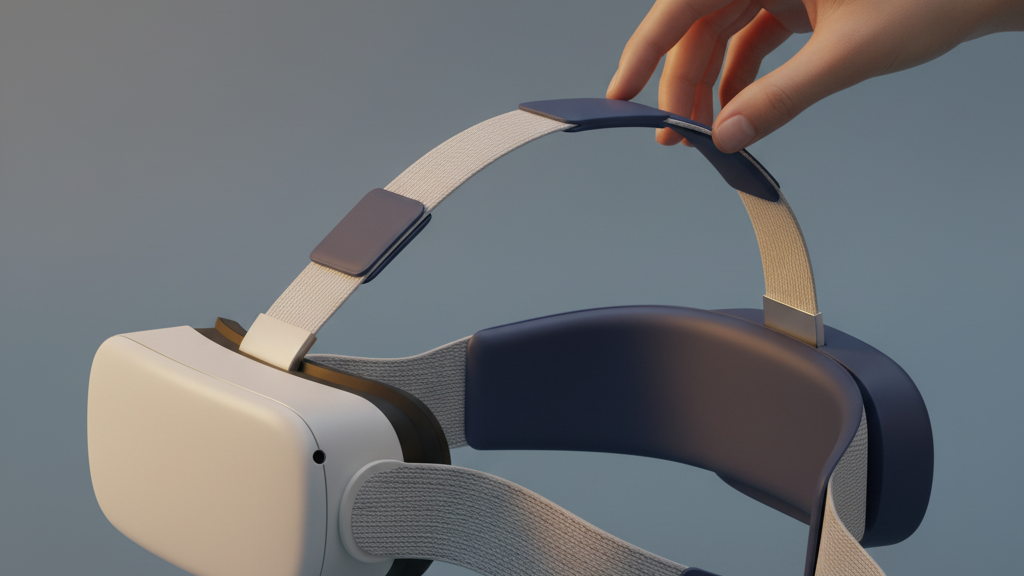
Ergonomic Strap Upgrades That Reduce Quest 2 Headset Pressure for Long Sessions
If your Meta Quest 2 starts to feel like a helmet after an hour of play—pinching at the forehead, digging into the cheeks, or tugging on your neck—upgrading the straps can transform how the headset wears. This guide walks you through choosing the right comfort strap, installing and fine-tuning it, managing weight distribution, and keeping everything clean and compatible so you can play longer with less strain. ⏱️ 10-min read
Read on for clear, practical steps and real-world tips for glasses wearers, people who suffer from neck fatigue, and anyone who wants marathon VR sessions to stop feeling like a chore. I’ll explain how different strap styles move weight, how to mount and micro-adjust them, and how to maintain the system so a small change today keeps you comfortable for months.
Choose the right Quest 2 comfort strap
Choosing the right strap starts with understanding how the Quest 2 interacts with your head. The stock soft strap is light and simple, but it leaves most of the headset’s weight pressing on your face. Halo-style upgrades—like the official Elite Strap or the Elite Strap with Battery—move load toward the crown and the back of the head, reducing cheek and nose pressure. Third‑party designs vary: some emphasize padding and breathability, others prioritize a rigid cradle and a rear counterweight for heavier mods.
Match the strap to your head shape, session length, and whether you wear glasses. If you’re in and out of VR for short bursts, a minimal strap with breathable foam might be enough. For multi-hour sessions, look for a strap that offers:
- Top strap height adjustment to shift load to the crown instead of the forehead,
- Side tension controls for even cheek pressure without pinching temples,
- A rear pad or battery option to counterbalance the front, and
- Breathable, removable padding for long-term hygiene.
Material and pad thickness matter: thicker, vented foam or gel layers spread pressure and wick sweat. If you wear glasses, ensure extra temple clearance and a nose area that doesn’t press frames into your face. Ultimately, pick a system that lets you micro-adjust on the fly—small changes compound over long sessions.
Step-by-step install for Quest 2 comfort strap
Installing an upgraded strap is straightforward if you follow a clear order: remove the old strap gently, secure the top anchor, attach the side straps, and then test and tweak. Most ergonomic upgrades—official or third-party—use the same basic mounting points on the Quest 2 shell, so the sequence below applies broadly.
- Power down the Quest 2 and remove any cables or accessories to avoid tugs.
- Support the headset with one hand and detach the stock strap: release the top mount first, then unclip the side posts. Keep a hand under the headset to avoid dropping it.
- Align the new strap’s top anchor with the top mounting point. Seat it fully so it sits flush against the plastic bezel.
- Attach side straps to their brackets. Thread any straps or hardware cleanly—avoid twists that create uneven tension.
- Secure any rear pads or battery modules per the manufacturer’s instructions. If a dial or preload is present, leave it loose for the first fit.
- Replace or adjust the facial cushion if the new system includes one; verify there’s no pressure on the lenses.
- Put the headset on, make small, equal turns on both side dials or sliders, and test with gentle nods and head turns.
Check that the headset tilts slightly forward to balance the view, that cables (if any) have clearance, and that the strap sits evenly. Tighten adjustments gradually: it’s much easier to add tension than to remove a pinched strap mid-session.
Fine-tuning fit for long sessions
Good initial fit is essential, but long-session comfort comes from gradual micro-adjustments. Start with a neutral baseline—top strap level across the crown and side straps snug but not tight—then use short test windows to find what needs changing. The goal is even contact that doesn’t create hotspots when you move.
Begin by setting the top strap so it crosses the crown flatly. This spreads pressure across the upper head instead of funneling it into one temple. After fastening, wear the headset for a minute and perform slow head movements: nod, tilt, and shake gently. Watch for slipping, any pressure on the nose bridge, and cheek pinching.
Next, balance cheek pressure with the side straps. Tighten both sides in small increments—no more than a quarter-turn or a single notch at a time—until the headset feels secure without leaving red marks. If lenses begin to press toward your eyes, ease the sides back. The headset should maintain a slight forward tilt so the optics sit correctly without pushing into your face.
Check nose bridge clearance by ensuring foam compresses evenly and doesn’t bunch on one side. If you wear glasses, adjust the crown pad up or down to stop frame arms from contacting lenses. During longer sessions, take a break every 30–60 minutes and reassess; small repositionings will often eliminate developing hotspots before they become painful.
Weight distribution and balance tips
Front-heavy pressure and neck strain are the most common complaints with the Quest 2. The right approach is to redistribute mass so the load travels from the front of the face to the crown and occipital region at the back of the skull, where larger bone surfaces tolerate pressure better than the nose or cheeks.
Back-mounted counterweights—the simplest being a battery pack or dedicated weight—effectively move the center of mass rearward. When combined with a rigid halo or rear pad, this prevents the headset from pivoting forward and digging into the forehead. A useful rule of thumb: set the rear pad so it lightly contacts the occipital ridge with steady pressure; it should support the headset during forward tilt tests without feeling tight when you look down.
A few practical balance checks: with the headset on in a neutral pose, nod forward and back slowly. You should feel continuous contact on the rear pad; if the front digs in when you nod forward, add a touch more rear preload. If the headset feels top-heavy, lower the crown strap slightly to bring support lower on the skull. Avoid over‑compensating by making the rear pad so tight that it creates a new pressure point—small incremental adjustments are safer and more comfortable.
Finally, manage expectations by comparing designs: a light soft strap will never feel as balanced as a halo with a counterweight, but it will be less bulky. Choose the combination that fits your preferred trade-off between breathability, adjustability, and steady balance for your typical session length.
Comfort features for glasses wearers
Wearing glasses in VR introduces two specific problems: frame pressure on the nose and temples, and lens contact that can cause scratches or fogging. The right strap and facial interface can alleviate both. Look for systems with wider temple clearance, softer crown padding, and a face cushion designed to keep the headset slightly away from the glasses.
Two practical design features help the most. First, a recessed or lip-style nose area gives room for the bridge of glasses so frames don’t press against your nose when the headset is snug. Second, thicker temple padding along the crown and wider cheek cutouts prevent frame arms from being squeezed into the face. Some third‑party cushions raise the headset slightly to improve airflow and reduce fogging; a small, breathable spacer can make a big difference without sacrificing optics alignment.
When adjusting for glasses, always set the crown and side tension so the headset rests reliably but leaves a little clearance at the nose bridge. If you’re trying different pads, document how each change affects frame pressure and fogging. And if neck load is a concern, pairing these comfort features with a rear counterweight or battery pack shifts the headset’s pressure away from the nose and temples entirely, which is often the single best upgrade for glasses wearers who play for hours.
Cleaning, maintenance, and strap lifespan
A modest care routine prolongs strap life and preserves fit—preventing the sagging, fraying, and weakened elasticity that cause pressure to creep back in over time. Spend a few minutes after each session wiping down contact surfaces and doing a quick inspection to catch problems early.
Cleaning: use a damp, lint-free cloth and a mild soap solution or a gentle electronics-safe disinfectant to wipe facial foam and strap surfaces. Avoid soaking any part, and apply isopropyl alcohol sparingly (if at all), as repeated exposure can dry and crack padding. Let components air dry fully before reassembly and storage.
Inspection: regularly look for frayed stitching, loose Velcro, cracked buckles, or stretched webbing. Do a gentle tug test on straps and quick-release points to ensure they hold firm. If a foam pad becomes misshapen or loses resilience, replace it—degraded padding changes how the headset contacts your face and quickly reintroduces hotspots. Store straps in a cool, dry place away from direct sunlight, heat, or heavy objects that could deform padding. If you rotate multiple headsets or pads, keep spares in a small, breathable bag to avoid compression.
Finally, track usage. If you rely on the headset daily for long sessions, expect to replace high‑contact padding more frequently than the straps themselves. Swapping worn pads proactively keeps pressure distribution consistent and saves you from frequent readjustments mid-session.
Compatibility, ecosystem, and accessories
Quest 2 strap upgrades exist within an ecosystem: official Meta options, reputable third‑party alternatives, and add-ons like batteries, quick-release systems, and adapters. The Quest 2 uses standard posts for many straps, but not every third‑party bracket aligns perfectly—always check product compatibility lists and user reviews to confirm fit with your specific firmware or faceplate version.
Quick-release and magnetic systems speed swaps and make it easy to change configurations between sessions. If you prefer modularity, choose systems with rated quick‑release hardware and avoid magnets placed near sensor zones; while small magnets are usually safe, a poorly designed magnetic clamp that sits over a tracking area can interfere with performance. Where batteries or counterweights are involved, ensure the mount distributes load evenly and that clips are rated for repeated removal.
Be cautious about cross‑compatibility hype. For example, accessories designed for other headsets—like adapters for the Apple Vision Pro—are usually not direct fits for the Quest 2 without specific adapters. Don’t assume a part made for a different shell will preserve sensor clearance, controller tracking space, or the face gasket seal. When mixing components, check warranty language: combining non‑OEM parts sometimes complicates support claims. Read return policies and opt for vendors with transparent trial periods so you can test fit and return if necessary.
Practical long-session best practices
Even with the perfect strap, human factors matter. Start long-session conditioning with short acclimation windows and build up—this protects your skin and helps you learn the minor adjustments that keep a headset comfortable for hours.
Plan initial sessions in 15–30 minute blocks. During each block, note pressure points and whether lenses fog. Keep a simple log: time, strap setting, pressure areas, and whether any change (pad swap, strap height, rear preload) helped. This record becomes a cheat sheet that speeds future adjustments and helps you find the sweet spot faster. Take deliberate breaks every 30–60 minutes: stand, stretch your neck, and reassess fit.
Posture and neck awareness are underrated. Use a chair with good lumbar support or stand with shoulders relaxed and chin slightly tucked; this reduces forward head tilt and the chance your headset weight forces the mask into your face. If you play seated, a small leaning stool or a high-backed chair that supports your upper back can reduce neck load significantly. Finally, practice light neck mobility exercises off-head to strengthen supporting muscles—this small routine helps keep fatigue at bay during long sessions.
Next step: pick the strap that matches your priorities (balance, breathability, or compactness), install it carefully using the sequence above, and commit to a simple log for a week. The combined effect of better hardware, small fit tweaks, and routine maintenance will let you enjoy longer VR sessions with far less headset pressure.







Compartir:
Upgrading the Quest 2 facial interface for longer, more comfortable play
Ergonomic breakdown: where weight distribution matters in Quest 2 straps