

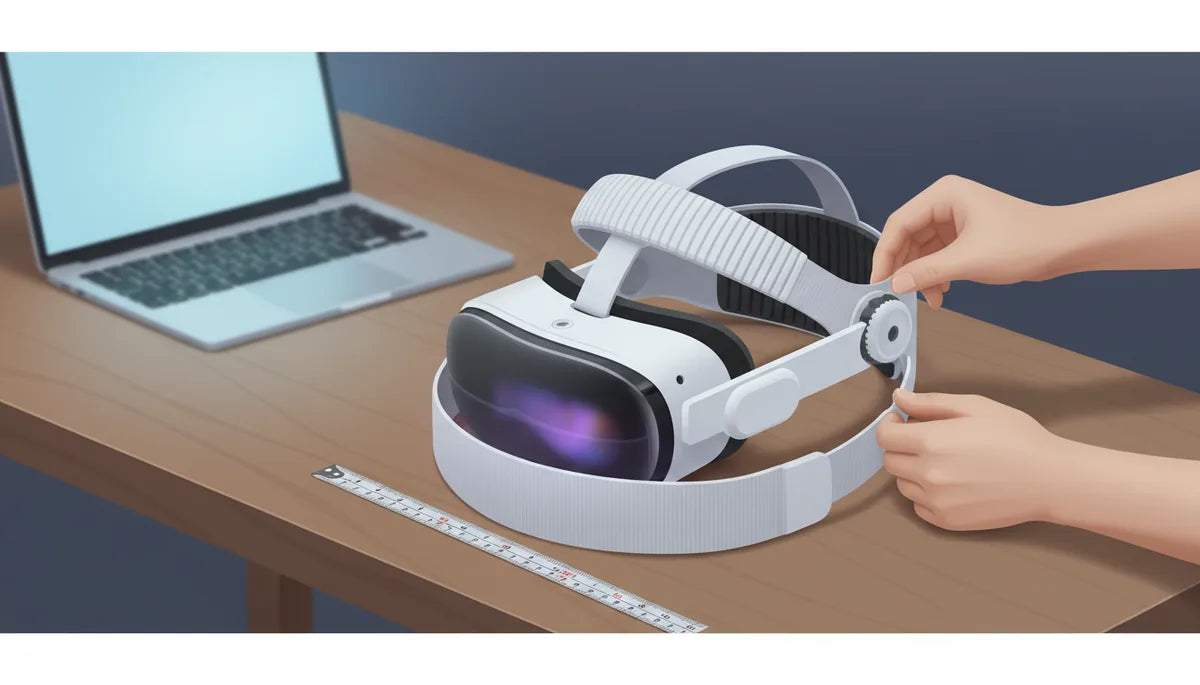
Fine-Tuning Strap Height and Length on Quest 2: Small Adjustments, Big Comfort Gains
If you love sinking into hour‑long VR sessions but finish them with forehead soreness, a sore neck, or a headset that slides and blurs the image, the solution is often not a new headset — it's a better fit. On the Quest 2, thoughtful adjustments to strap height and strap length change how weight is distributed, where pressure lands, and whether the display stays steady during fast movement. ⏱️ 11-min read
This guide walks you through strap anatomy, a reliable baseline fit, targeted height and length tweaks, weight‑balance theory, upgrade options, maintenance, and practical troubleshooting. Read it, make small, repeatable changes, and you’ll likely extend comfortable playtime without spending a fortune.
Understanding strap anatomy and how height and length influence fit
Start by visualizing the strap system as three components that collaborate: the crown/top strap, the rear/side straps, and the contact padding. The crown strap runs over the top of your head and primarily redistributes forward weight away from the nose and eye socket. The rear strap (the ones that anchor at the sides and cup the back of your skull) resists backward slip and controls clamp force — how tightly the face gasket presses against your cheeks and nose.
On the Quest 2, the straps pass through small eyelets and use side adjusters to change length. Eyelets determine the anchor points on the shell; adjusters let you micro‑tune tension independently on each side without retying. The padding — foam around the face and sometimes on the forehead — both cushions and seals. It’s the interface between strap geometry and skin: too much pressure and you get hotspots; too little and the headset wobbles or light leaks.
Why height matters: moving the crown strap up or down shifts pressure between forehead and upper skull. Higher tends to take pressure off the nose by pushing more load forward; lower shifts load toward the rear and sides. Why length matters: changing strap length alters headset tilt and clamp force. Shortening side straps brings the display nearer and increases pressure; lengthening reduces pressure but can lower stability. Understanding those roles lets you make intentional, small adjustments instead of guessing.
Establishing a comfortable baseline: measuring and setting initial height and length on Quest 2
Before you start endless tinkering, create a measurable baseline you can return to. Use a flexible tape measure and a mirror or a friend. Record two simple numbers: head circumference (widest point around the back of your skull and above your ears) and crown height (vertical distance from your brow line to the top of your head while standing naturally). Note values in centimeters or inches — this makes future adjustments repeatable.
Put the Quest 2 on as you usually would and set the top strap roughly centered along your recorded crown height. For many users this is a mid‑position: the crown strap sitting comfortably in the middle between brow and the back of the skull. With the side adjusters, tighten left and right straps until the face gasket sits flush across your cheeks without digging in. A quick rule: you should be able to slide one finger between the strap at your temple and your skin — snug but not pinching.
Now run three simple tests to confirm your baseline. 1) Tilt test: look up and down and side to side; the headset should remain level without sliding. 2) Seal check: verify the lenses line up with your eyes and there’s no light leak at the top or bottom. 3) Movement check: briskly shake your head as you would in a game; the visor should stay relatively steady and not cause the image to blur. If any test fails, adjust only one parameter at a time — height or length — and recheck. Record the starting positions and a one‑sentence note like “mid crown, side straps 2 clicks in” so you can return to this comfortable baseline if needed.
Strap height adjustments for comfort: forehead contact, eye clearance, and long-session wearability
Vertical placement — where the crown strap sits on your head — is surprisingly powerful. The right height spreads pressure across more surface area, reducing hotspots and preventing numbness. Start with the crown strap centered over the highest point of your skull, then refine in small increments: move it 2–4 mm (a hair’s breadth to a few millimeters) and test for 5–10 minutes of active play.
Target even forehead contact. If you feel a sharp hotspot, slide the crown strap slightly forward or back until pressure equalizes. The forehead should have a continuous line of contact without a single concentrated ridge. For glasses wearers, check brow clearance carefully: the strap mustn’t press into the brow bone or pinch temple arms. If your lenses fog or rub against frames, raise the top strap a notch to increase front clearance — but then re‑tighten side straps so the seal remains secure.
Eye and sensor clearance matters too. Make sure the strap isn’t obstructing the brow line or interfering with any external sensors or light entering the headset. If you use prescription lens inserts, test the height with them installed since inserts alter how the headset rests on the face. For long sessions, alternate the crown position slightly between blocks of play — 15–20 minutes with a slightly higher crown, then lower for the next block — to avoid pressure building in one spot. Small adjustments, repeated and logged, let you converge on the height that keeps you comfortable for hours rather than minutes.
Strap length adjustments: achieving stable fit and balanced weight
While height changes where pressure lands vertically, strap length determines clamp force, tilt, and how the headset tracks with your head. The goal is a secure seal that doesn’t feel like a vise. Start at your baseline: side straps even, headset level, face gasket flush. Then adjust length in small, symmetric increments — a quarter‑inch or 5–10 mm at a time — and test. Avoid the temptation to overtighten; excessive clamp often leads to headaches and cheekbone pressure.
Balance left and right tension. If one temple feels tighter, loosen that side slightly and tighten the opposite side by the same amount. The headset should sit squarely so the display lines up with your pupils; unequal strap lengths invite tilt, which in turn causes one lens to be closer to your eye and the other to be farther away, producing blurriness or distortion during motion.
Consider the chin/neck effect. If side straps are too long, the headset can pull backward during movement, forcing you to instinctively lift your chin and strain your neck. If straps are too short, the headset clamps down causing pressure behind the ears and at the back of the skull. A useful check: with straps adjusted, look straight ahead and drop your chin; the headset should remain aligned and not pull up on the back of your head. If it does, lengthen a touch and retest. Always make a single change and retest with active play to see real effects — adjustments that feel small by hand can noticeably shift balance when you’re moving in VR.
Weight distribution and balance: why height and length matter for long sessions
Comfort is fundamentally about where the headset’s center of gravity sits relative to your head. Move that center forward or backward with strap height and length, and you change how much your neck, forehead, and occipital bone (the bump at the rear of your skull) must compensate. Higher crown placement tends to shift perceived weight forward onto the forehead; lowering the crown shifts more load to the rear and sides.
For long sessions, many users prefer a slightly rear‑biased balance: more of the weight sits toward the back of the head, which reduces the tendency for the headset to pull on the nose and helps maintain a natural head posture. Achieve this by lowering the crown a notch and letting the rear strap anchor against the occipital bone, then lengthening the side straps a little so pressure spreads evenly. The trade‑off is that too much rear weight can create pressure behind the skull — so fine‑tune in 5–10 minute play segments.
Perceived weight, not raw mass, predicts fatigue. Small changes in how the strap contacts scalp and temples alter perceived weight dramatically. If you feel neck strain, check whether your setup is front‑heavy (raise rear support or lower the crown) or clamping too tightly (loosen side straps). Keep notes: “Session A — crown +1 cm, side −2 clicks — less nose pressure, mild occipital ache” helps you iterate toward the comfort sweet spot for 60+ minute sessions.
Upgrade paths and compatibility: Elite Strap, third‑party options, and installation tips
At some point, strap geometry alone may not be enough. Upgrading to the official Elite Strap or a third‑party solution can deliver better padding, different anchor points, and refined adjustability. The Elite Strap typically improves lateral stability and crown distribution versus the stock band; versions with an integrated battery add rear mass that can counterbalance front weight but will change the balance equation — often reducing nose pressure while increasing occipital load.
Third‑party options vary: halo‑style straps distribute load across a ring and are excellent at reducing clamp force on the face, while padded strap kits focus on cushion and sweat management. When evaluating, check two things: how the top anchor aligns with your recorded crown height, and whether the rear adjustments allow the strap to rest on your occipital bone. Battery packs shift the center of gravity back; if you try one, use the battery variant for longer sessions and adjust the crown lower to maintain balance.
Installation tips for beginners:
- Work on a soft surface. Remove face gasket if required and follow the manufacturer’s clip steps carefully.
- Install one side at a time, ensuring eyelets align symmetrically with your baseline marks.
- After installing, set the crown to your recorded height and tighten side straps to your baseline. Run the three quick tests (tilt, seal, movement) before long play.
Care, maintenance, and long-term wearability
Comfort depends on clean, well‑conditioned straps and padding. Sweat, oils, and dust degrade grip and cushion over time, changing how straps behave and causing hotspots to develop. Wipe straps and foam regularly with a soft cloth and mild soap solution or a 70% isopropyl alcohol wipe for quick sanitation. Avoid soaking foam inserts; instead, lightly dab and air dry completely before reassembling. Never use heat sources like hair dryers or radiators — heat warps plastics and dries out foam.
Inspect straps and padding monthly if you use your Quest 2 often. Look for fraying at seams, thinning foam, or compressive creases that won’t spring back. Replace worn pads promptly — a flattened forehead pad concentrates pressure and ruins any adjustment work you do. Rotate straps or flip pads where possible to distribute wear evenly; simple rotation often doubles usable life.
Storage matters too. Keep your headset in a cool, dry place and avoid hanging it by the straps, which stretches them. Use a hard case or shelf where the straps are supported and the face gasket isn’t crushed. For any repaired or replaced components, re‑establish your baseline — new padding and strap elasticity change the numbers you recorded earlier, so update your fit log after maintenance.
Troubleshooting and common pitfalls: getting the most comfort from adjustability
When comfort problems persist, targeted troubleshooting usually finds the culprit. If the headset slips down and your view blurs, check both crown height and side strap length: loosening the side straps and re‑centering the crown often stops downward drift. If you have a persistent hotspot on the forehead, the crown is probably too low or the pad is compressed — raise the top strap in small steps or replace the pad if it’s flattened.
Common pitfalls and fixes:
- Uneven pressure at temples: balance side strap tension by loosening the tight side and tightening the opposite side incrementally.
- Neck strain after long sessions: shift toward a rear‑biased balance — lower the crown and lengthen side straps to spread weight behind the skull.
- Fogging and glasses pinch: raise crown height and slightly loosen side straps to increase front clearance, then re‑tighten for seal.
- Overtightening for perceived stability: try a halo or padded upgrade to reduce clamp force while maintaining steadiness.
Mini‑case: A user with sharp forehead pain lifted the crown by 1 cm, tightened the rear anchor so it sat higher against the occipital bone, and made slight symmetric side‑strap adjustments. The result was immediate relief and improved image stability — a good illustration of how small, deliberate moves beat random fiddling.
Next step: Pick one single variable (height or length), change it slightly, and play for 15 minutes while taking notes. Repeat until you discover the sweet spot that lets you play longer with less fatigue — then log that setting as your new baseline.







Compartir:
Comparing Third-Party Head Straps to the Quest 2 Stock Strap
Optimizing strap length to improve headset balance