

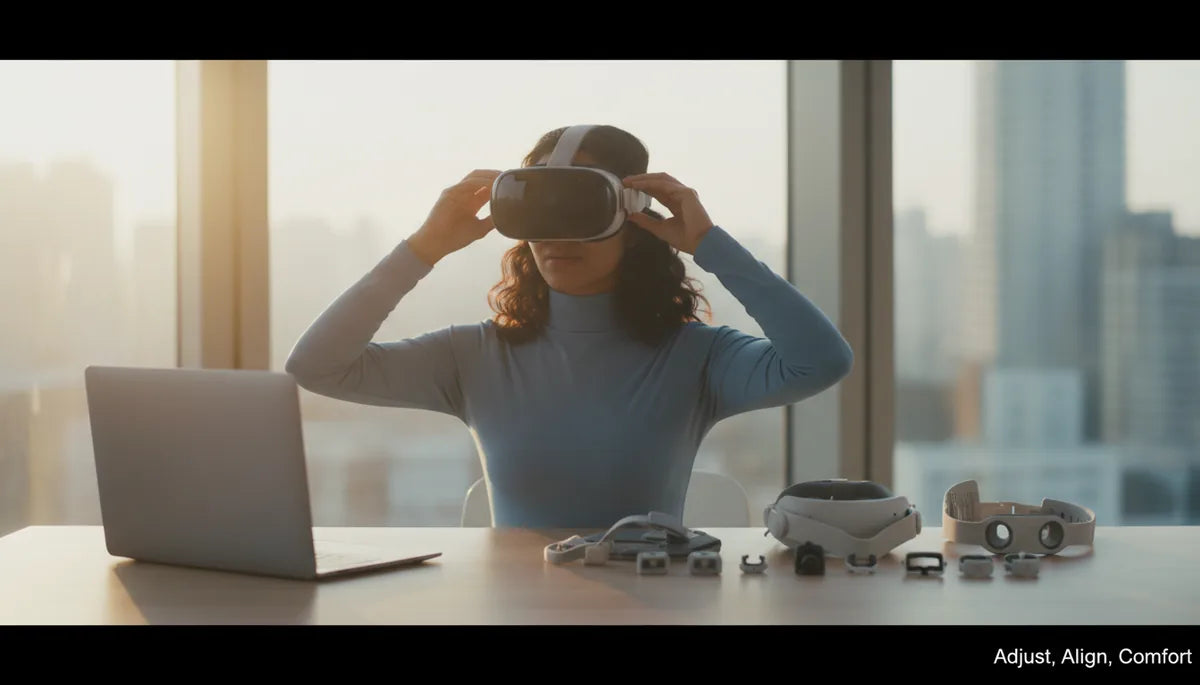
How to Adjust the Oculus Quest 2 Head Strap for Any Head Shape: A Practical Guide to Comfort, Stability, and Long Sessions
Getting a Quest 2 to feel like it was made for your head is half engineering and half small, patient adjustments. Whether you’re new to VR, wear glasses, or plan marathon sessions, the right strap setup—matched to your head shape—changes everything: less wobble, fewer hotspots, and clearer optics with less eye strain. ⏱️ 10-min read
This guide walks you through choosing a starting strap, installing or swapping it, dialing in top and rear tension, fine-tuning height and length, and adding comfort or counterweights for long play. Read the quick-fit examples and troubleshooting tips to get a repeatable, comfortable setup you can trust session after session.
Assess head shape and baseline strap options
Your head shape determines where the Quest 2 will press, slide, or want to tip forward. Start by identifying whether your head is narrow, round, or oval and note your forehead height—these two simple observations will tell you where to begin. Narrow heads often feel pinch near the temples and benefit from lower strap placement and even side tension. Round heads commonly press on the crown, so a firmer rear cradle helps stop forward tilt. Oval heads generally distribute pressure more evenly but still gain from balanced tension across top and sides.
Match a baseline strap to that starting fit. The stock soft strap is lightweight and breathable and often feels comfortable for longer sits, but it can allow side-to-side or front-to-back wobble on some head shapes. The Quest 2 Comfort Strap (soft but reinforced) is a middle ground for longer play. The Elite Strap, or rigid third‑party bands, anchor more securely along the sides and rear and deliver noticeably less wobble and better weight distribution—especially helpful if you wear glasses or add a battery pack. Use your head-shape read to pick one as your baseline: narrow heads often prefer softer straps with careful positioning; round heads usually gain the stability of a rigid or Elite-style band.
Install or swap to your preferred strap
Swapping straps is straightforward if you move slowly and protect the lenses. Remove the stock strap by releasing Velcro and unclipping anchors while holding the headset steady so you don’t strain the lenses. Work methodically from one anchor to another—peeling Velcro evenly—and stop if anything resists. Yanking increases the risk of snapping clips or scratching lenses.
When installing an Elite or third‑party rigid strap, align its attachment points with the Quest 2 frame before applying force. Most official and reputable third‑party straps either snap into place or use screws. If screws are supplied, tighten them to hand‑firmness or the manufacturer’s recommended torque; avoid over-tightening which can crack plastic. Ensure the strap sits flush against the housing and that clips are fully seated in their notches.
Before a full session, do a quick safety-and-fit check: put the headset on, adjust the strap lightly, and look for gaps between strap and housing. Verify there is no protruding hardware that could press against your head. If your new strap uses spacers or adapters (common with third‑party pads or for glasses), install those first and confirm they're oriented correctly. Finally, test the headset in a safe area to confirm no wobble or unexpected pressure points.
Align top strap and rear strap for balance
A balanced Quest 2 fit spreads loading across the crown and rear of the head, preventing the front from pulling down into your face. The top strap primarily controls vertical pull—how much the headset wants to slide down—while the rear strap counters forward tilt and provides horizontal stability. Start with the top strap set just above your crown; this takes the burden off the forehead and helps maintain lens alignment during nods or quick head turns.
Make small, even changes. If the front drops when you look down, tighten the top strap a notch and recheck. If tilting occurs to one side, the culprit is usually uneven side strap tension—adjust both sides equally to level the headset. For the rear cradle, aim for snug contact with the lower back of your skull: too loose and the headset wobbles forward, too tight and you’ll get hotspots or a pressure band across the back of the head. Larger heads often benefit from a firmer rear cradle; smaller heads need a gentler touch to avoid cradling pressure.
Use a five-minute wear test: sit, look around, nod, and simulate game movements. If you feel localized hotspots on the temples or the forehead, incrementally redistribute tension—adjust the top strap a little, then the rear—until contact feels broad and even. The goal is consistent light pressure rather than obvious tight points.
Adjust strap height and length for optimal fit
Height and length tweaks refine how the headset sits on your face and how weight transfers to your skull. The ideal setting places most of the load into the mid-forehead and rear crown instead of the nose bridge. On top straps, aim for a slight lift: lengthening the top strap just a hair can reduce forehead pressure and stop the front from digging in during long sessions. But don’t over-lengthen; if the headset floats away from your face, you’ll get degraded clarity and motion lag from misaligned lenses.
If you have the Elite Strap with a rear dial, use short turns to find a snug-but-not-pinching zone. Clockwise tightens; stop when the headset holds steady during a head tilt without feeling compressed. For side-strap systems, pull evenly on both sides instead of tightening one side harder. Check that you can blink, squint, and move your jaw without the headset shifting uncomfortably. Centering the lenses is key—look straight ahead and make sure your pupils align with the lens centers. Misalignment causes edge blur and eye fatigue during extended use.
After every change, perform dynamic tests: tilt your head down, quickly look left and right, and simulate reaching motions. Small adjustments can have outsized effects; work in increments and retest always. If you own multiple pad or spacer options, try combinations—sometimes a thinner cheek pad plus a slightly longer top strap yields a surprisingly better balance than one large change alone.
Comfort enhancements for glasses wearers and long sessions
Glasses introduce two primary concerns: physical clearance to avoid scratching lenses and pressure on temples/behind-the-ear. If your Quest 2 included a glasses spacer, start there—installing it maintains consistent eye relief and reduces the risk of contact between headset lenses and glasses. After adding a spacer, re-center the lenses and confirm the headset doesn’t tilt forward when you nod.
Loosen temple pressure by reducing overall strap tension and repositioning cushioning to spread pressure away from the arms of your glasses. If you still feel hotspots behind the ears, try a combination of a thinner cheek pad and a spacer; this adds lateral room without changing how the headset sits on your face. For extended sessions, forehead cushioning is your friend: thicker or memory-foam pads spread load over a larger area and prevent sharp brow pressure.
Schedule breaks every 60–90 minutes to relieve eye strain and re-check strap fit. If you sweat, opt for breathable covers and swap pads periodically—saturated foam compresses faster and can alter the fit. Consider a flip-up or quick‑remove solution only if you frequently take quick breaks; constant removing and re-donning can change strap tension and increase wear on Velcro or clips. Lastly, if you consistently use the headset for long sessions while wearing glasses, a more rigid Elite-style strap often provides superior stability without the need to crank tension that pinches temples.
Weight distribution and accessory considerations
Adding accessories changes the game. Battery packs, audio modules, and heavier third‑party straps move the center of mass and can create rear-heavy setups that strain your neck. The goal is to get the net load nearer the crown so neck muscles don’t fight a lever effect. If you use a rear battery pack, counterbalance by raising the top strap slightly and tightening the front side straps minimally—this shifts some of the pull toward the crown and reduces pendulum‑like motion.
When combining an Elite Strap with a battery pack, attach the pack low on the rear cradle if the strap’s geometry forces it high; then increase top-strap tension only enough to keep the headset stable. Some users prefer mounting a lightweight counterweight higher on the headstrap or using a harness-style third‑party strap that spreads load across a broader area. Test any accessory combo for 10–15 minutes before committing to long sessions to ensure the balance feels neutral rather than pulling.
Also check accessory compatibility: not every accessory hugs the Quest 2 frame the same way. Verify clips and screw points seat correctly and that added components don’t create new pressure hotspots. If you feel strain in the neck or shoulders within five minutes of using an accessory, rearrange or remove it—no accessory is worth chronic discomfort.
Examples and quick-fit cases
Concrete starting setups save time. Use these quick-fit recipes as a baseline and tune from there:
- Narrow head: Start with the rear cradle tightened one or two notches tighter than neutral. Shorten side straps evenly so the headset sits closer without pinching. If padding feels bulky, swap to slimmer cheek pads and consider a small spacer to keep lenses at the correct distance.
- Round head: Use a rigid or Elite-style strap to stabilize the crown area. Set the rear cradle at mid-tight and the top strap slightly above the crown to lift the front. Aim for even tension; if the front still tilts, increase rear cradle tension incrementally.
- Oval head: Start with balanced tension: mid-tight rear cradle, neutral top strap, and side straps adjusted so the headset is level. You’ll likely need only minor tweaks based on forehead height.
- Glasses / long sessions: Install the glasses spacer, loosen overall tension to avoid temple pressure, add forehead padding to spread weight, and plan 60–90 minute breaks. Use breathable pad covers to manage sweat and preserve foam resilience.
For each case, perform a dynamic test: move your head quickly, nod, and simulate gameplay. If you notice drift or hotspots, make small changes—incremental shifts work far better than drastic reconfigurations.
Maintenance, cleaning, and wear checks
Routine care keeps your strap functioning and comfortable. After every few uses, do a quick visual inspection: look for frayed Velcro, compressed or torn foam, loose clips, or cracks in plastic anchor points. Replace worn components promptly—compressed foam or failing Velcro changes pressure distribution and can undo hours of fine-tuning.
Clean cushions and straps with a damp cloth and mild soap; avoid submerging foam in water. Wring cloths thoroughly to prevent excess moisture near electronics. Let parts air dry completely before reassembly. For sweat-prone users, use washable covers or replaceable pads; saturated foam loses shape faster and accelerates fit changes.
When reinstalling parts, ensure fasteners and clips seat snugly. Loose connections are a common cause of slippage and uneven pressure. Keep spare pads, a small set of screws (if compatible), and a compact cleaning kit handy if multiple people share the headset. Regular small investments in maintenance preserve fit and comfort without needing a full strap replacement.
Troubleshooting and quick fixes
Slippage, hotspots, fogging, and pressure points are the typical issues. Diagnose methodically: start by checking that every clip and fastener is fully engaged and that Velcro surfaces have not lost grip. If slippage persists, rebalance the top and rear straps—often tightening the rear cradle by a notch and slightly loosening the top strap will stop forward drift without increasing forehead pressure.
Hotspots usually mean concentrated pressure. Widen the contact area by switching to thicker forehead padding or repositioning existing pads. If pressure is behind the ears, reduce side-strap tension and consider thinner cheek pads. For lens fogging, improve airflow by slightly increasing forehead lift or using breathable pad covers. If glasses slide, re-install the spacer or adjust the side straps to reduce temple compression.
Compatibility problems with third‑party accessories often present as mis-seated clips or unexpected pressure. Re-check vendor instructions and make sure any adapters or spacers are oriented correctly. Finally, if a new configuration feels wrong after 10–15 minutes, revert to your last comfortable setting and make one small adjustment at a time. Comfort is cumulative; small, repeatable changes create a reliable, long-term fit.
Next step: pick the starting recipe that matches your head shape, install the strap carefully, and run a short dynamic test. Keep notes—what worked and what didn’t—so you can build a reproducible setup for future sessions or other users.







Compartir:
Best Face Gaskets and Cushions for Oculus Quest Two: Comfort, Fit, and Hygiene
Glasses Friendly Quest Two Straps for Clearer VR Comfort