

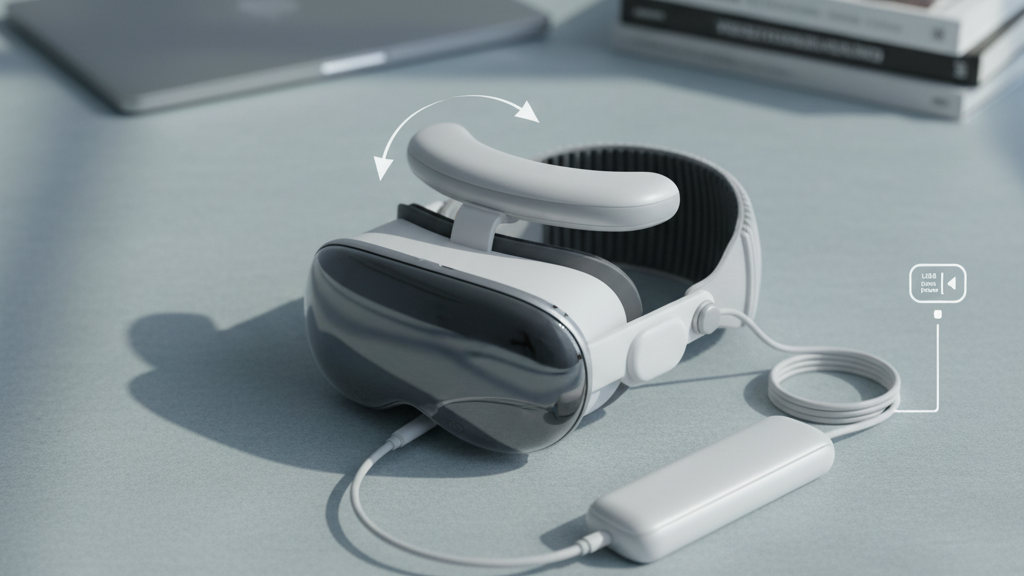
How to Add an External Battery to Your Quest 2 Without Ruining Tracking or Neck Comfort
Adding an external battery is the simplest way to double or triple your Quest 2 playtime — but a poorly chosen pack or messy install can introduce tracking drift, tugging, heat, and neck strain. This guide walks you through battery selection, strap and mounting choices, cable routing, and balance techniques so you can play longer without sacrificing comfort or inside-out tracking accuracy. ⏱️ 10-min read
Read on for practical checks, a step‑by‑step install, cable layouts that won’t interfere with sensors, and maintenance practices that keep batteries safe and straps reliable. I’ll also share real-world examples and quick tweaks you can make in minutes to improve balance and reduce drift during long sessions.
Battery strategy for Quest 2: choosing a pack and mounting approach
Start with the basics: capacity, weight, and connector compatibility. For typical Quest 2 use, a USB-C PD battery in the 10,000–13,000 mAh range will usually add about 2–4 hours of runtime, depending on brightness, streaming, and app demands. If you push brightness and steam demanding titles, lean toward larger capacity — but remember every extra mAh is extra grams on your head or in your belt.
Decide whether to wear the pack on your head or on your waist. Head-mounted packs (rear-hinge straps, pouches on the installation-guide-a-step-by-step-fit-tutorial" rel="nofollow noopener noreferrer">back strap) centralize weight and remove cable length, but they add mass directly behind your skull. Belt-mounted packs shift that mass off your head entirely, which normally improves neck comfort and tracking, though you must route the cable from your waist to the headset cleanly.
Other buying details matter: prefer slim, low‑profile packs that dissipate heat, include USB‑C pass‑through or PD support, and have built‑in overcurrent and thermal protection. Bulky bricks pressed against the skull create hot spots and can force you to loosen straps, which degrades tracking. Finally, check whether the pack manufacturer recommends short, flexible cables and offers strain relief or mounting clips — those simple conveniences reduce tugging and sensor occlusion later.
Weight, balance, and tracking: how extra battery alters Quest 2 behavior
Even a small rear-mounted battery shifts the Quest 2’s center of gravity rearward. That change is subtle at first: micro-tilts, extra strap compression, and a tendency for the headset to pull backward during quick turns. These micro-movements are what the inside-out tracking cameras sometimes interpret as drift or wobble.
Do a quick balance check before any long session: with the headset off, mount it to your head, then gently lift and tilt it forward, backward, and side-to-side. If the headset hangs fully tilted in one direction or the front feels unstable, you’ve got a balance problem to fix. For tracking verification, put the headset on while seated and make slow left/right and up/down turns — if you see immediate positional wobble, check strap tightness, cable routing, and whether the battery is pressing unevenly against the strap.
Cable tension is another hidden culprit. A loose, swinging cable creates drag that the headset can mistake for movement. Secure the cable along the strap with clips so it follows the skull’s curve. If you must use a heavy rear pack, consider a small front counterweight or a more balanced rear-mount design that puts mass near the crown rather than far behind the nape. In many setups the sweet spot is distributing mass so the headset’s center of gravity sits close to your head’s natural center, not dangling behind it.
Selecting comfort-straps: official options vs third-party designs
The stock Quest 2 strap is lightweight but not ideal for a heavy external battery. If you plan extended sessions with added weight, upgrading the strap is one of the highest-impact changes you can make. The official Elite Strap (and its variations) improve stability and provide a tighter, padded contact area that better resists rotation and reduces pressure hot spots. Their quick-adjust mechanisms also let you fine-tune fit without removing the headset.
Third-party brands like Kiwi Design, AMVR, and Bobo VR offer purpose-built battery straps and rear pouches at lower prices and in different shapes. These vary by padding density, mount position (low-nape vs. mid‑crown), and build quality. Denser foam spreads load more evenly; breathable fabrics reduce sweat buildup. Look for tool-free adjustment points so you can rebalance weight during a session.
Practical selection tips:
- Match the strap to your chosen mounting approach: low-profile straps for slim packs, reinforced rear straps for heavier batteries.
- Confirm the pouch lines up with Quest 2’s geometry so it doesn’t press into the lenses or occlude the cameras.
- If you’re undecided, buy a strap with modular pouches — you can move the pack up or down the strap to experiment with balance.
Step-by-step installation guide for Quest 2 with a battery strap
Install deliberately: small mistakes in routing or attachment lead to pressure, tugging, and tracking issues. Follow this sequence for a clean, repeatable setup.
- Fully charge the battery pack. A full charge reduces mid-session swaps and helps you evaluate normal weight distribution during your first test.
- Power down the Quest 2 and loosen or remove the existing strap. Removing the strap entirely for the first install makes routing cable and positioning the pouch easier.
- Attach the battery pouch or clip to the strap where it will sit centered behind your head. Aim for the area just above the nape or mid‑crown — experiment to find the most stable point for your head shape.
- Route the USB‑C cable along the strap’s rear channel. Use the strap’s built‑in loops or add Velcro wraps. Keep the cable tight to the strap so it won’t swing across the cameras during quick turns.
- Use a short, flexible USB‑C cable (0.3–0.5 m). Plug it into the headset and verify a snug connection; avoid cables that are too stiff or too long.
- Tighten the strap, put the headset on, and perform a balance check with slow head turns. Watch for any tugging, warming at the battery, or headset rotation.
- Play for 15–20 minutes to evaluate comfort and tracking. Reposition the pack or adjust strap tension as needed.
If you notice cable strain at the USB‑C port, add a clip near the headset as a strain relief anchor. That small anchor stops tugging from transmitting to the connector and protects both the port and your cable.
Cable management and mounting layouts to minimize tracking interference
Good cable management is invisible in the headset’s behavior but obvious in the results: less drift, fewer interruptions, and longer comfortable play. The guiding principle is keep the cable close to the skull, away from the front-facing cameras, and anchored so it cannot create dynamic forces during motion.
Preferred layouts:
- Back-of-head route: run the cable along the back strap, following the curve of the skull toward the nape. This keeps it out of the camera field and reduces the chance of it swinging into view during quick head turns.
- Waist route for belt packs: run the cable down the back and into your shirt or belt. Secure the cable at mid-back with adhesive clips so movement of your torso won’t tug the headset.
- Short, semi-rigid cable sections: use short cables (0.3–0.5 m) with some rigidity. They resist kinking and tend to hold position rather than swaying.
Anchoring tips:
- Use small adhesive cable clips or 3M command clips along the strap to lock the cable in place.
- Coil any excess cable and attach it to the strap with Velcro rather than letting it hang.
- Avoid routing across the forehead or crown; front paths can occlude sensors and create heat and sweat issues.
Finally, periodically check for new wear points where the cable rubs against fabric or plastic. Smooth, predictable routing prevents sudden tugs that can look like tracking errors in-game.
Long-session comfort: weight distribution and padding tips
When you stretch a session past an hour, comfort is a combination of correct distribution and breathable padding. The goal is to keep weight lying near the skull’s centerline and to limit pressure on the forehead, temples, and cheeks.
Padding upgrades make a big difference. Replace the stock face pad with a denser foam or memory foam insert about 15–25% firmer than stock. Choose a breathable cover or mesh to improve airflow. This spreads pressure across a larger surface, reduces hot spots, and helps lower skin irritation over time.
Balance tweaks that help instantly:
- Lower the top strap slightly and tighten the rear strap to shift load from your forehead to the back of your head.
- If the headset still pulls backward, add a small, removable counterweight low on the rear strap rather than higher up; moving mass closer to the nape reduces torque on your neck.
- Prefer lightweight wireless earbuds to heavy over-ear cans. Over-ear headphones push weight forward and often negate the benefits of a rear-mounted battery.
Practical session rhythm: plan micro breaks every 45–60 minutes. Even a 60‑second neck stretch or headset pause to let the battery breathe reduces accumulated strain and helps redistribute heat away from the skin.
Maintenance, safety, and care for external battery setups
External batteries are convenient, but they require respect. Regular inspections and safe storage extend pack life and reduce the risk of damage to your headset or body. Check packs before each extended session for swelling, strange odors, or temperature anomalies. Any sign of puffing or excessive heat is a red flag — discontinue use immediately.
Cable care matters too. Inspect connectors for corrosion or frayed insulation. Replace cables that show wear; use quality, certified USB‑C cables to avoid power instability or overheating. If a pack feels hotter than warm-in-hand during normal use, stop and let it cool. Avoid operating batteries in direct sunlight, on radiators, or inside hot cars; high ambient heat accelerates degradation and can cause swelling.
Cleaning and hygiene:
- Wipe removable pads and straps with a damp cloth and gentle detergent. Allow full drying before reuse to prevent mold and skin irritation.
- Use removable covers if you sweat heavily; they’re cheaper to replace than the original foam and keep odors down.
Finally, track battery age and capacity. Packs that won’t hold charge or cycle erratically are no longer safe. Follow manufacturer disposal guidance for worn packs — never puncture or burn them.
Vision Pro compatibility notes and compatibility with Quest 2 accessories
Apple Vision Pro is a different ecosystem with a unique headband and front module design. Expect most Quest 2 battery straps, pouches, and mounts to be incompatible without adapters. If you own both headsets or shop for multi‑role accessories, verify fit carefully and look for universal mount designs that explicitly list both devices.
If you do consider cross-compatibility adapters, check clearance around the front module: Vision Pro’s front geometry and ventilation needs differ from Quest 2, and a mismatched pack can block airflow, press against sensors, or cause imbalanced torque. Read user reviews and product Q&As to confirm the adapter’s real-world fit — photos from reviewers are often the best evidence.
For Quest 2 owners interested in multi-headset setups, two practical approaches reduce risk:
- Use universal strap adapters that allow swapping pouches between headsets while keeping the pack off the head via a belt or backpack.
- Buy modular pouches that attach with quick-release clips; these let you move the pack from a Quest strap to a belt without cutting new holes or fabric.
In short: treat Vision Pro as a separate case. If compatibility is critical, plan for adapters or a dedicated battery solution for each headset rather than forcing one accessory to do both jobs.
Final takeaway and next step
Extending Quest 2 sessions with an external battery is straightforward when you balance weight, route cables with discipline, and choose a strap that spreads pressure. Start by selecting a slim USB‑C PD pack, decide whether a head or belt mount fits your comfort priorities, and follow the installation and cable-management steps above. Run a 15–20 minute test with slow head turns to validate tracking before settling into a long session — and schedule short breaks every 45–60 minutes to stretch and cool batteries.
Next step: pick one change — a denser face pad, a short semi‑rigid cable, or an upgraded rear strap — and test it in a single session. Small adjustments compound quickly: a better strap plus tidy cable routing often eliminates the majority of drift and discomfort without a large investment.







Share:
Battery Pack Compatibility for Meta Quest 2: What Fits and What to Avoid
Drying and storage techniques after cleaning your Quest two comfort strap