

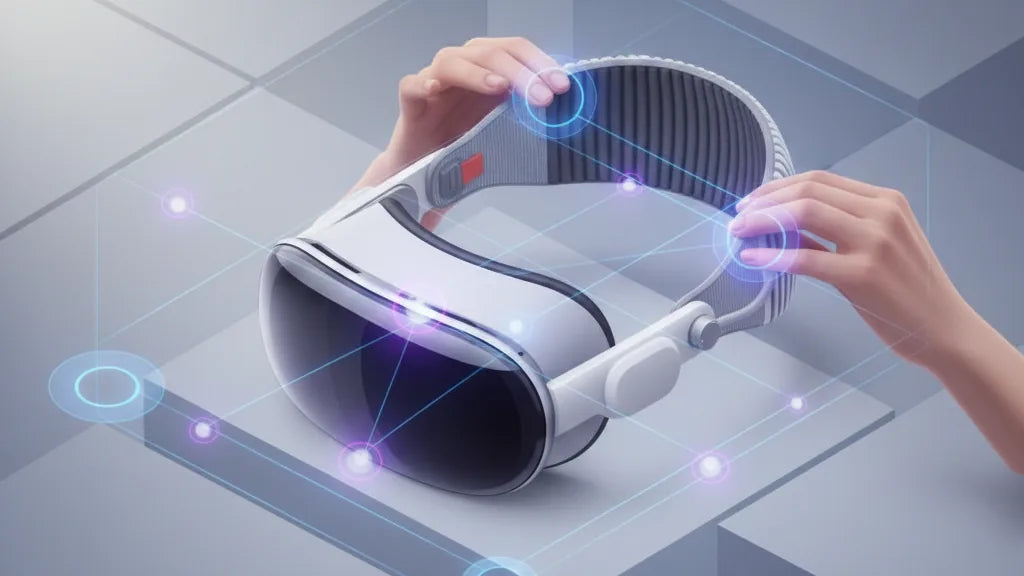
Adjust Quest 2 Comfort Straps for Even Skull Pressure: A Practical, Step-by-Step Guide
Long VR sessions should be about immersion, not counting minutes until your temples start to ache. The Oculus/Meta Quest 2 is a capable standalone headset, but its stock comfort setup can concentrate pressure on the forehead, temples, or occiput, especially during extended play or when you wear glasses. This guide walks you through a practical, methodical approach to mapping pressure, installing and tuning straps, and applying small fixes that make long sessions comfortable. ⏱️ 10-min read
Read through the steps in order and try the quick tests after each adjustment. You’ll learn where to look for hotspots, how to balance crown and side tension, how to accommodate glasses, and when a small pad or counterweight is the smarter fix—without needing to buy the top-tier Elite Strap right away.
Start with a pressure map: identify hotspots and ideal load distribution
Good adjustments begin with a quick, honest diagnosis. Create a simple pressure map by feeling the contact points while the headset sits loosely on your head. Run your fingers along the foam—forehead, temples, and the back of the skull (occiput). Press gently to locate the firmest spots and note three zones that feel tighter or more likely to create lasting discomfort.
Why this matters: concentrated load on a small contact point will feel manageable for a minute or two, then grow into a distracting ache, redness, or numbness. If your comfort drops after 10–15 minutes, the headset is likely using too small an area to bear its weight. The goal is broad-area contact—spread the load across crown, sides, and the lower back of the head so no single millimeter of skin takes all the force.
Do a short motion test to confirm: put the headset on loosely, then look left, right, up, and down for 2–3 minutes. If it slips, shifts, or you feel a sharp edge at the temples or at the rear pad, mark those locations. Wrinkles in the strap, red marks, or the need to repeatedly press the headset into place are all signs of uneven load. Keep a mental or written note of each hotspot so you can target adjustments rather than guessing.
Step-by-step install and initial fit for even pressure
Begin with the strap attachments loose and ready to move. Attach the Quest 2 comfort strap to the side slots and the top band until you hear the click, but leave plenty of slack. A rushed, overtight initial fit locks in poor geometry—so give yourself room to iterate.
- Center the display above your eyes: before tightening, position the headset so the lenses sit squarely in front of your pupils. This makes subsequent tensioning predictable and prevents you from compensating by shifting straps once the image is misaligned.
- Put the headset on and seat the rear halo: rest the halo or rear pad on the lower curve of your skull. Aim for broad contact across the occipital ridge rather than a small spot high on the back of the head.
- Tighten in sequence: snug the crown (top) strap first just enough to hold the headset in place, then alternate tightening the two side straps in small steps until you feel even tension. This prevents tilt and keeps the display stable during movement.
- Check stability with light movement: shake your head gently and look around. The image should stay steady without requiring a clamp-like grip on your forehead.
Think of the headset as floating: the optimal baseline is a light, secure feel, not a locked clamp. If something feels off, loosen everything and start the sequence again—sometimes resetting to the loose state helps you discover the position that produces the broadest contact and the fewest hotspots.
Adjust height, crown contact, and length for balanced load
Balancing vertical and lateral forces is largely a function of crown height and side strap tension. Small changes here will have outsized effects—so proceed deliberately and test between tweaks.
Crown height controls where the headset's forward pull is transferred. Lowering the crown shifts load forward; raising it shifts load rearward and can lighten forehead pressure. If your forehead feels pinched, raise the crown a few millimeters and tighten the rear halo slightly. If the headset tilts forward when you look up, lower the crown or add rear lift.
Side straps equalize lateral forces. Tighten each side incrementally and alternately to avoid twisting the headset. If you notice one temple feeling sore, back off that side a notch and tighten the opposite side an equal amount. Keep track of changes—tiny asymmetries add up. Aim for symmetry: straps should feel the same underhanded tension and sit at the same height across both ears.
Length and tension: tighten until the headset stays stable with brisk head movements but not so much that you feel the straps digging into skin or pressing nerves. A practical rule: the headset should feel secure through a 10–15 second headshake, but you should be able to slide a finger under the forehead pad. If you can’t, you’re likely over-tightening. After each adjustment, wear the headset for several minutes—pressure can “creep” and reveal new hotspots only after a few minutes of play.
Accommodating glasses and long sessions: practical comfort tweaks
Glasses add height and pressure inside the mask; getting straps right is essential to avoid temple pinching and lens glare. Begin by creating slightly more room in the facial interface: push the foam rim out a touch (if replaceable) or use a thin spacer between the forehead pad and skin to prevent the front edge from bearing too much weight.
Shift side strap anchors back a touch toward your ears to move the force away from the temple arms of the glasses. If the arms rest under a strap, add a thin soft pad on top of the arm or reposition the strap so it crosses behind the arm, not directly on it. For many glasses-wearers a small vertical shift of the crown (2–3 mm) is enough to create the clearance needed without sacrificing lens alignment.
For long sessions, plan micro-breaks and rechecks: after 20–30 minutes, remove and scan for new hotspots. Movement and sweat change how foam compresses and how straps seat. Adjust lens distance—moving the display away slightly can reduce cheek pressure if the headset is pressing forward. If discomfort shifts during gameplay (e.g., after several sudden turns), reassess strap symmetry and consider a rear counterweight or light gel pad to stabilize balance.
Example: a glasses user found temple soreness after 15 minutes. By moving the side straps half a centimeter rearward, raising the crown 3 mm, and adding a thin foam shim over the temple arm, they eliminated the pressure without changing visual clarity. Small, combined tweaks usually work better than one large change.
Fine-tuning pressure distribution: troubleshooting and quick fixes
When hotspots persist, the solutions are rarely dramatic—think subtle adjustments and strategic padding. Start with micro-changes: tighten or loosen a side strap by one notch, rotate the rear halo a few degrees, or slide a small thin foam insert under the forehead pad. Wait a minute after each change; foam and skin need time to settle.
Common quick fixes:
- Front-heavy tilt: move the rear pad lower on the occiput or attach a small counterweight to the back strap. Even 40–80 grams can significantly reduce forehead pressure.
- Temple pain: shift side straps back, add thin soft padding over the temples, or slightly raise crown height to redistribute load.
- Persistent forehead pinch: raise the headset a few millimeters and slightly loosen the crown strap; reinforce rear contact so the front no longer bears most of the weight.
Test after movement: many fit issues only show up during active play. Do a five-minute session with typical head movement—fast turns, leaning, quick nods. If hotspots reappear, make incremental changes and retest. Keep a short log of what you change and the outcome; this helps avoid repeating tweaks that didn’t work.
When to consider accessories: if you’ve invested time in precise adjustments but still feel persistent, a thin gel pad at the rear or a low-profile counterweight often solves the last 10–20% of discomfort. Prefer thinner, breathable materials to avoid sweat buildup during extended sessions.
Maintenance and longevity: cleaning, care, and replacement decisions
Comfort is partly about the condition of the straps and cushions. Dirt, sweat, and compressed foam degrade fit over time. Clean your pads and straps regularly with mild soap and water or a gentle, non-abrasive cleanser. Remove the faceplate cushion and straps where possible; wipe fabric surfaces and foam gently—do not submerge memory foam panels. Always air-dry away from direct heat or sunlight to prevent warping.
Inspect wear points every few months: flattened foam, loose seams, or cracked plastic on buckles affect tension and alignment. Replace cushions when foam no longer springs back or when fabric tears appear. For side straps, check the anchor clips and adjusters—if they slip under reasonable tension, they’re a reliability risk and should be replaced.
When deciding whether to replace a pad or upgrade to a new strap, weigh cost vs. comfort gains. Third-party face cushions and strap kits often outperform the stock materials. However, poor-quality third-party components can compress faster or block ventilation. Choose breathable fabrics and replaceable foam inserts when possible. Store the headset on a stand or soft surface to maintain strap shape; avoid leaving it face-down where the front foam can be permanently compressed.
Comparing options and next steps: when to upgrade or mix with other pads
Upgrading from the stock Quest 2 strap to the Elite Strap (or a third-party alternative) is a practical step when micro-adjustments and padding aren’t enough. The Elite Strap adds a rigid halo and wider rear support that generally improves balance and reduces facial pressure—but it also adds weight. If you primarily suffer from face pressure rather than overall instability, a lightweight counterweight and a better face pad can deliver similar benefits at lower cost.
When evaluating options, consider three metrics: balance (how the headset sits on your skull), adjustability (range of crown and side tension), and compatibility (with glasses, battery packs, or wireless extenders). Third-party cushions vary widely; look for low-profile memory foam or gel hybrids that maintain shape and breathe well. If you plan to use a wireless battery pack or add a camera attachment, ensure your chosen strap or pad doesn’t interfere with clip points or airflow.
Plan upgrades around your usage pattern: if you play short sessions mostly seated, a modest pad swap may suffice. If you often stream long sessions or game standing, prioritize a halo-style strap or a strap-plus-counterweight setup. Test any upgrade with the same pressure-mapping method you used initially—new components change the geometry, and you’ll need to re-balance crown vs rear contact accordingly.
Next step: try a tiered approach—start with padding and micro-adjustments, add a small rear counterweight if needed, then evaluate a full Elite Strap or high-quality third-party kit if comfort still limits session length. Document changes and session lengths so you can objectively assess which upgrade delivered the best comfort-per-dollar.
Takeaway: Comfort is iterative. Start with a pressure map, set a neutral baseline, and use small, deliberate adjustments to balance crown, side straps, and rear support. For persistent issues, a thin pad or minor counterweight usually solves the problem faster and cheaper than a full hardware swap. After each tweak, test in movement and during longer sessions—your headset should feel secure and evenly distributed, not clamped or tilted. If you want, try one change at a time and keep a short log of results; within a few sessions you’ll have a tailored fit that keeps you in VR without the distraction of pain.







Compartir:
Optimizing Padding and Face Interface to Reduce Pressure Points During Play
Comparing Quest 2 strap types: Halo strap vs Elite strap and impact on stability