

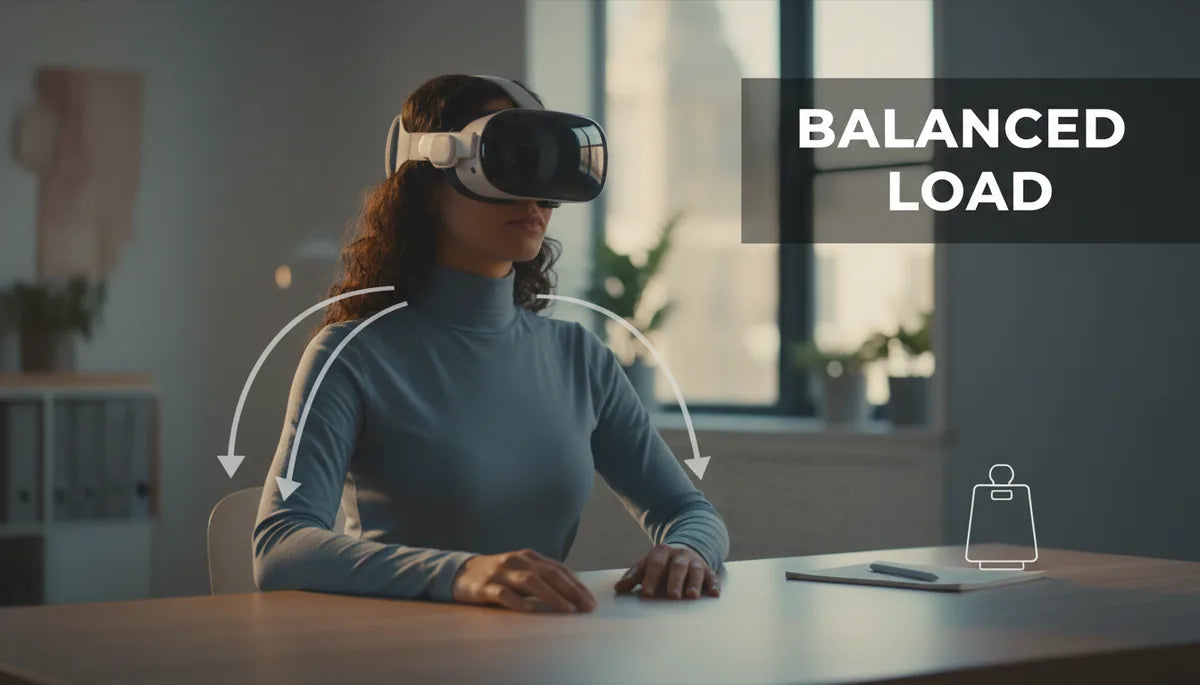
Balance Your Quest 2: Strap Design and Weight Placement to Beat Neck Strain
Long VR sessions shouldn’t leave your neck sore. The difference between an enjoyable, multi-hour play or work session and a painful one often comes down to how your headset’s mass sits on your head. This guide explains, step-by-step, how strap choice, strap tuning, accessory placement, and simple maintenance can move load off your neck and onto the skull and torso—so your sessions stay comfortable and productive. ⏱️ 11-min read
Whether you use the stock Comfort Strap, the Elite Strap, or a third-party halo harness, you’ll find practical adjustments, installation tips, and real-world examples to test and measure balance immediately. Read on to learn how to make your Quest 2 (and similar headsets) feel lighter—without sacrificing stability or safety.
Understanding weight distribution and neck fatigue in VR
Headset comfort isn’t only about grams on a scale; it’s about where those grams sit. When mass is biased forward—toward the face and lenses—the headset’s center of gravity (CG) moves ahead of your ears. Your neck becomes a lever arm, and each head turn multiplies torque around the cervical spine. The result: early muscle fatigue, a tendency to jut the head forward, slouched shoulders, and sometimes headaches that linger after you quit VR.
Conversely, when the CG is shifted rearward and closer to the skull’s crown or torso, the load is shared between the skull, the rear cradle, and your shoulders. This distribution reduces the effective torque on neck muscles and makes the headset feel perceptually lighter. Small imbalances compound over time—micro-movements, small slides, and uneven padding create hotspots that force you to constantly micro-adjust, which accelerates fatigue.
Practical balancing starts with a snug, even fit so the headset doesn’t slide forward on the brow. Adding a rear strap or counterweight shifts load to the occiput and upper torso; using stands or weight-management systems while idle (for example, lift stands for stationary use) offloads the neck entirely. The goal is neutral balance: gravity should feel centered near the crown so you don’t have to fight to keep your head upright.
Choosing a Quest 2 comfort strap for balanced weight
Picking the right strap is the first and most effective step to reduce neck strain. The stock Quest 2 Comfort Strap is lightweight and simple, but it tends to let the headset sit slightly forward because it lacks a robust rear cradle or halo. The Elite Strap adds rigidity and a rear cradle—moving the CG back and improving fore-aft stability—but it’s heavier and more rigid, which can change pressure points.
When evaluating straps, look for designs that intentionally move mass rearward instead of merely adding padding at the temples. Halo-style harnesses and rigid rear cradles shift weight to the occipital region and the crown—areas better suited to carry vertical load. Battery-integrated straps can be a double win: the battery acts as a counterweight at the back while extending run time, but only if cables are well-routed and the pack sits snugly without pressing into the skull.
Third-party options from reputable brands often offer better adjustability and rear-weight options than stock straps. Try to test a few with quick head turns: a well-balanced strap should remain steady with minimal forward tilt during movement. Pay attention to materials—breathable padding reduces sweat and pressure build-up, and a semi-rigid rear cradle preserves balance during rapid motion. Ultimately, prefer a strap that shifts mass toward the posterior cradle or halo and lets you fine-tune tension independently on the top, sides, and rear.
Fine-tuning strap height, length, and fit for neck comfort
Once you have a rear-support strap, small adjustments make a disproportionate difference. The aim: transfer vertical load from the face to the crown so the cervical spine isn’t doing the heavy lifting. Start with the top strap high on the head—position it across the crown rather than the forehead. This routes vertical forces downward through the skull instead of compressing the face.
Adjustment method: begin with all straps loose. Put the headset on, then tighten the top strap until the headset’s vertical load shifts off the face. Tighten in small increments—about one click or notch at a time—and test the facial seal and image alignment after each change. Next, tension the side straps evenly so the CG sits roughly above the ear plane; if one side is tighter, the headset will tilt and place uneven pressure on the jaw and temple.
For the rear cradle, aim for a snug but padded contact at the lower occipital area—not a hard, digging point. If the headset tilts forward during head movement, add a touch more rear cradle tension or slightly raise the top strap to counteract the forward moment. Avoid overtightening: if you feel numbness or pressure points, back off and redistribute padding. For most users, a balanced feel is achieved when the headset remains level during brisk head turns and you can relax your neck without the display falling out of alignment.
Install guide: Step-by-step Quest 2 Comfort Strap vs Elite Strap
Swapping straps is straightforward if you follow the right order and check alignment as you go. Power down your headset before you begin to avoid accidentally triggering buttons. Gather the original screws and set them aside in a labeled tray—knowing which fastener belongs to which anchor saves time if you revert later.
- Remove the original clips: With the headset powered off, gently unscrew the stock strap anchors and set them aside. Avoid bending plastic clips—ease them straight out.
- Attach side arms: Align the new strap’s side arms with the mounting slots and gently press them into place. Use the manufacturer’s screws and tighten in a cross pattern to balance tension left-to-right.
- Seat the rear cradle: Fit the rear cradle so it follows the curve of your skull. Leave top straps loose while you get the cradle positioned; final top tensioning comes last.
- Secure the top strap: Fasten the top strap and tighten incrementally. Check the face seal and IPD (interpupillary distance) to ensure optics are aligned before making the headset tight.
- Route battery cables (if applicable): Run cables through dedicated channels, clip them into guides, and place the battery pack low and centered on the rear cradle. Ensure the cable exits without pinching and won’t tug when you tilt your head.
- Test balance: Simulate head turns, look up and down, and lean forward. If the headset tilts, loosen the front slightly or increase rear cradle tension until movement remains level.
Common pitfalls: overtightening the top strap (which can press into the crown), leaving cables loose so they pull forward, and mounting the battery too high on the back cradle (which can press into the occipital bone). Take your time—small changes matter more than big ones.
Weight management with batteries and wireless accessories
External batteries and wireless modules change not only run time but balance. A rear-mounted battery pack is one of the most effective counterweights: when centered and mounted low on the cradle, it shifts the CG behind the eyes so neck muscles share load with the skull and upper shoulders. Use purpose-built pouches or mounts that conform to the strap curve and distribute pressure across an area rather than creating a single pressure point.
Mounting tips: choose a compact, flat or slightly curved power bank that sits under the rear cushion rather than above it, and secure it low on the cradle to minimize forward tilt. Heavier packs should be positioned slightly lower than lighter ones to keep the CG close to the center of rotation. If you’re using a wireless adapter, ensure the antenna and module sit close to the headset and that any cables are braided, short, and clipped along the strap to avoid tugging. Cable tension is critical—one loose cable down the side can create enough forward pull to negate the rear weight.
When using battery-integrated straps, double-check the pack’s contact points so it doesn’t press into the occipital region. If you detect a hotspot at the base of the skull, try small shims or soft padding between the pack and strap to spread the load. Finally, remember that balance is personal—what feels neutral for one person might need a 30–50 g shift for another. Small mass redistribution often outperforms larger, uncontrolled weight additions.
Glasses wearers: balance and clearance tips for long sessions
If you wear glasses, temple pressure and nose bridge clearance can amplify neck discomfort. Glasses push the headset slightly forward and introduce extra contact points that change how weight distributes across the face and skull. Address these factors proactively to preserve balance.
First, use low-profile frames if possible; thick temples often press the strap away from the crown, causing subtle forward tilt. Add thin foam spacers between the face gasket and the headset foam to increase optical clearance without tilting the headset forward. This reduces cheek and temple pressure and helps maintain a level CG.
Adjust strap tension carefully: tighten the top strap to accept more vertical load on the crown, and loosen side straps slightly to avoid pinching temple arms. Check the nose pad fit—if the headset rocks on the bridge, it will shift weight forward when you look down. Consider a softer, thicker replacement face pad to distribute pressure more evenly. Finally, take frequent short breaks (every 30–60 minutes) and perform neck mobility exercises: simple chin tucks, gentle side tilts, and shoulder rolls reduce stiffness and help reset your posture between sessions.
Maintenance, replacements, and quick-optimizing fixes
Comfort is a moving target: pads compress, straps stretch, and screws loosen. Regular maintenance preserves balance and prevents a slow drift back toward a forward-heavy feel. Inspect straps and buckles every few sessions for fraying or looseness and replace any component showing visible wear. Soft pads lose thickness over time; replace them before they flatten to retain the original fit and CG location.
Cleaning also matters. Oils from skin and hair compress foam and reduce friction, causing slight slippage and forward creep. Wipe pads with a damp cloth and mild soap, allow them to dry fully, and avoid soaking. If you swap padding or face gaskets, re-check balance: even small thickness changes shift the headset’s effective CG. Quick checks after swaps—head turns, looking up and down, and a one-minute play test—catch most balance issues early.
For urgent fixes between sessions: add a thin adhesive foam shim at the rear cradle to nudge the CG back, reposition a battery pack lower on the strap, or clip a small coin-style weight into a purpose-built pouch to adjust tilt. Keep a simple balance checklist near your setup: IPD and image alignment, top strap tightness, rear cradle snugness, battery/cable routing, and a short movement test. These steps usually eliminate subtle discomfort before it becomes a problem.
Cross-device notes: Vision Pro compatibility and weight-balance considerations
Accessories marketed as “cross-device” don’t always maintain balance across different headsets. The Vision Pro, for example, uses a different geometry and mounting approach than the Quest 2, so a strap or counterweight designed for one may change pressure points on the other. Before investing in a cross-device accessory, verify mounting options, cable routing compatibility, and whether the accessory concentrates weight in a location that the target headset’s cradle supports.
When testing cross-device gear, focus on three checks: does the accessory sit low and centered or does it press against the occiput; do cables have dedicated channels so they won’t tug; and do padding and cradles match the headset curvature. If you plan to alternate headsets, choose modular systems where rear packs, pouches, and cushioning are repositionable—this flexibility preserves balance across differing shell shapes. For stationary or professional setups (for example, mixed-reality demos), consider a dedicated stand or lift system to offload the headset between uses; these systems reduce the risk of long-term neck strain when multiple users have different fits.
If you’re comparing the Vision Pro and Quest 2 ergonomics, remember that perceived comfort is highly individual. Test each headset with the accessory in place and perform the same balance checks: levelness during head turns, absence of hotspot pressure, and minimal forward tilt. Those three simple tests reveal the usability of a cross-device accessory far faster than spec sheets.
Takeaway: start by shifting the center of gravity rearward—choose a strap that moves mass to the back, tune top and rear tension to carry load on the crown, and use rear-mounted batteries or small counterweights mounted low and centered to neutralize forward torque. Keep pads and straps in good shape, route cables tightly, and test with brisk head movements. Use the quick checklist before every session: IPD, top strap, rear cradle, battery placement, and a two-minute movement test. These steps will extend your comfortable play and work time dramatically—often without adding a single ounce to the headset.







Compartir:
How to choose an Oculus Quest 2 strap: comfort, fit, and durability explained
Glasses-friendly Quest Two comfort: padding and fit tips