

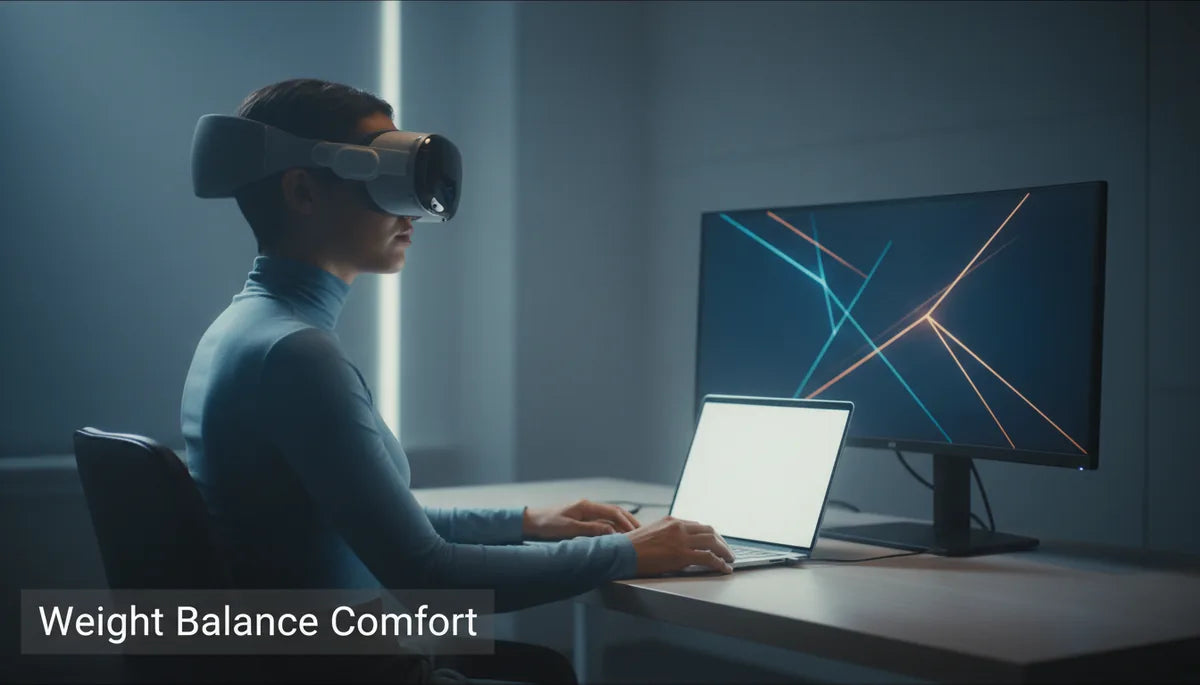
Rebalance Your Quest 2: Counterweights and Better Straps for Longer, More Comfortable VR Sessions
If your Meta Quest 2 starts fine but becomes a chin‑or‑nose drill after 30–45 minutes, you’re not alone. Many owners assume lighter headsets automatically equal comfort, but poor comfort-strap-vs-elite-strap-vs-third-party" rel="nofollow noopener noreferrer">weight distribution—front‑heavy optics and a floppy strap—drives facial pressure, neck fatigue, and frequent mid‑session adjustments. Small, targeted upgrades—a firmer strap, a simple rear counterweight, or a halo design—can transform how long and how comfortably you play. ⏱️ 11-min read
This guide walks through the why and how: the mechanics of balance, strap options and installation, counterweight choices (including safe DIY fixes), fine‑tuning for glasses wearers, cross‑compatibility notes for Vision Pro accessories, and practical maintenance. Read on for concrete steps you can take today so your next VR session feels less like a workout and more like immersion.
Weight, Balance, and Comfort: Why Upgrades Matter
Comfort in VR is mostly about where the mass of the headset sits relative to your head. Even a relatively light headset feels heavy when the center of gravity lies well forward: the headset becomes a lever that pivots on your nose and cheekbones. That pressure creates hotspots on the face, blurs the optics as the lenses slip, and forces the neck to fight the forward pull—exactly the recipe for shortened play sessions and sore mornings.
Redistribution is the simple, effective fix. By shifting mass rearward—whether with a reinforced rear strap, a halo that carries load across the crown, or a small counterweight clipped to the back—you move the headset’s center of gravity closer to the top or back of the skull. The load is then spread over a larger surface (the crown, rear band, and temples) instead of concentrated on the bridge of your nose. Users commonly report immediate reductions in facial pressure, less lens misalignment during quick turns, and a calmer neck during long sessions.
Beyond comfort, balance improves stability and immersion. A centered headset resists tilt and slip, so you notice fewer lens fogging events, fewer recalibration pauses, and less eye strain. The result is not just “less pain” but longer, more engaging VR time where you stay in the experience rather than adjusting to it.
Strap Choices for Quest 2: Comfort Strap vs Elite Strap and Alternatives
The stock elastic strap that ships with the Quest 2 is lightweight and simple, but its flexibility is the reason many owners feel front‑heavy pressure after a short while. Two mainstream upgrades dominate the conversation: the Meta Comfort/Elite family and third‑party halo or rigid straps.
The official Elite Strap adds a rigid back band and an integrated adjustment dial, allowing you to cinch the headset securely and move the load away from your face. The Comfort Strap (a softer, padded option) improves padding and interface comfort, while the Elite Package prioritizes structure and balance. Both offer a clear step up from stock design—less cheek and nose pressure, more consistent lens alignment, and fewer readjustments during active play.
Halo‑style third‑party straps work differently: a rigid ring sits around the crown and transfers weight to the top and sides of the skull. This design is especially effective for glasses wearers or anyone who finds facial hotspots intolerable. Halo straps virtually eliminate brow and cheek pressure because the load rides on the crown instead of the face. Installation and build quality vary: some are quick to clip on, others require screws or plates; adjustability ranges from a simple dial to multi‑point sliders.
When choosing, prioritize adjustability, durable materials, and padding placement. If you move a lot (beat saber, VR fitness), choose a strap with secure locking and minimal slippage. If you want lightweight, occasional comfort boosts, a padded comfort strap may be enough. For marathon sessions, the Elite or a quality halo strap paired with a counterweight will deliver the biggest gains.
Counterweights 101: How They Improve Front-Back Balance
Counterweights work on a straightforward principle: add mass to the rear of the headstrap so the headset’s center of gravity shifts backward. That reduces the forward torque that pushes the headset onto your nose and cheeks. The effect is immediate—less pressure on facial contact points and a headset that feels “suspended” rather than hanging off your face.
Counterweights come in several forms:
- Adhesive stick‑on weights — thin metal/lead plates that adhere to the strap. Low profile, but often permanent and can leave residue.
- Pouch or pocket weights — small bags or sleeves sewn into or clipped onto the strap, allowing easy swaps and incremental tuning.
- Clip‑on modular weights — snap or clamp onto rear straps for rapid attachment/removal and repositioning.
- Integrated battery packs — external power banks mounted at the rear that serve dual purposes: extra runtime and rear mass.
Start light. A common testing approach is to begin with roughly 10 grams and add in 5–10 g increments while performing typical motions. Casual users often find relief in the 10–50 g range; long‑session users frequently land between 100–200 g, and active/sim‑racing setups may use 150–250 g for maximum stability. Placement matters: mount weights low on the rear band and centered on the occipital area for the best leverage. Avoid off‑center clips that introduce tilt.
Step-by-Step Install Guide: Quest 2 Comfort Strap (Beginners)
Swapping the Quest 2 strap is approachable with a little patience and the right tools. Follow these steps to install a Comfort or Elite strap safely and get to a tuned fit quickly.
- Prepare: Power down the Quest 2 and remove the facial interface if it helps clear the sides. Lay a microfiber cloth over a flat workspace to protect the lenses. Tools: Phillips screwdriver, plastic pry tool or spudger, and a small container for screws.
- Remove factory straps: Gently unclip or unscrew the side mounts. Use the plastic tool to ease stubborn clips free—don’t force metal parts when resistance is firm. Keep hardware in order and note the original orientation for reassembly reference.
- Seat new strap ends: Align the replacement strap’s mounting points with the side rails. Clip or slot in the strap ends first, ensuring both sides mirror each other. If the new strap uses screws, loosely install them so parts can still shift for alignment.
- Secure and adjust: Once everything is aligned, incrementally tighten screws on both sides. Don’t overtighten—metal threads can strip. Test fit the headset and adjust the dial or sliders until the strap holds snugly without creating hotspots.
- Final checks: Reinstall the facial interface, power on, and look through the headset to confirm lens alignment. Move your head briskly in a few directions to test slippage. If you feel forward pull, plan to add a counterweight or reposition the strap higher on your crown.
Common mistakes include overtightening one side and leaving the other loose (creates a tilt), or mounting the strap too low on the skull so the upper band doesn’t engage. If you experience pressure under the back band, slightly loosen and raise the band for better crown contact.
Fine-Tuning Your Fit: Height, Length, Tightness, and Glasses
Fit is a system of small adjustments: strap height, side length, crown tightness, and how the facial interface meets your cheeks. Mastering these elements eliminates hotspots and keeps lenses centered—critical for comfort and visual clarity.
Start with the headset resting naturally on your face, then adjust the top/crown strap so the rear band carries some load. The ideal crown contact feels like a gentle ring across the top of your skull; not a clamp. Next, fine‑tune the side straps so the display sits just above your cheekbones and the interpupillary alignment stays consistent as you look around.
Tightness matters—too loose and the headset tilts forward under motion; too tight and you’ll create pressure points that cause headaches. Aim for a snug feel that stays put during brisk motions but doesn’t compress soft tissue. Use short test sessions (5–10 minutes) and make incremental changes.
For glasses wearers: choose straps that move load to the crown (halo designs) and use thinner lens spacers or prescription lens inserts to reduce the need for extra facial padding. If you keep glasses, ensure temple arms clear the headset’s foam and that the facial interface has enough clearance—some third‑party facial foams prioritize shallow depth to protect frames. A small foam spacer around the nose bridge or a softer facial interface can relieve pressure.
Finally, track changes. Keep a quick log: strap type, rear weight grams, session length, and any discomfort. Over sessions you’ll discover a repeatable setup that fits your head shape and play style.
Compatibility and Cross-Compatibility: Vision Pro, Third-Party, and Wireless Accessories
Curiosity about Vision Pro accessories is natural—Apple’s device emphasizes weight redistribution solutions—but cross‑compatibility isn’t guaranteed. Vision Pro mount points, strap geometry, and materials differ from the Quest 2’s side rails and facial interface. That said, several accessory types can be repurposed or adapted with the right approach.
Conceptual cross‑uses: rear counterweights, battery packs, and halo rings often work irrespective of the exact headset, provided you can attach them securely. Brands like FlitLift design modular weight systems and stands that show how moving mass rearward reduces face pressure; some of their products are explicitly marketed for Vision Pro but the underlying weight‑distribution ideas map directly to Quest setups. When attempting cross‑use, examine attachment methods: Velcro pouches, clip systems, and universal adhesive plates are easier to adapt than proprietary metal mounts.
Wireless power banks make excellent dual‑purpose accessories. A slim USB‑C battery pack mounted to the rear strap can extend playtime and add beneficial mass. Keep two caveats in mind: heat and ventilation. Batteries produce heat and can affect comfort if pressed against the scalp; mount them in a pocket with a breathable layer and avoid covering headset vents. Also, ensure cables have strain relief so the USB connection can’t tug the headset forward if pulled.
Adapters exist—3D‑printed plates, universal brackets, and strap extenders—that let you use some Vision Pro‑style accessories on other headsets. If adapting, prioritize secure mounting and ease of removal so you can revert to stock configuration without damage.
Maintenance and Longevity: Cleaning, Care, and Safety for All-Day Use
Upgrades improve comfort, but they add components that need upkeep. A brief maintenance routine before and after sessions keeps straps secure, pads hygienic, and weights safe.
Daily checks (2–3 minutes): inspect straps and fasteners for fraying, test snaps and clips for tightness, and ensure adhesive weights haven’t started to lift. For battery packs, check cable integrity and connector bends. If anything looks worn, replace before use.
Cleaning routine: wipe foam and strap pads with a damp (not wet) microfiber cloth and a mild soap solution. Avoid bleach and harsh solvents that degrade foam and adhesives. For facial interfaces, consider removable silicone or PU replacements that are easier to sanitize. Allow pads to fully air dry before wearing.
Durability tips: prefer removable pouches or clip systems over permanent adhesives; they’re easier to replace if seams wear. Inspect sewn pouches and Velcro closures periodically—stress points often fail first. For DIY weights, avoid exposed hard edges and secure everything within a padded envelope to protect skin and hair.
Safety limits: don’t overload the rear strap. If you start to feel neck soreness, reduce rear mass and re‑evaluate strap engagement points. With battery packs used as weights, follow manufacturer safety: don’t place hot packs against skin, keep devices ventilated, and don’t sleep in a headset with an active power pack attached. These simple checks prolong both your gear’s life and your comfort during marathon sessions.
Budget-Friendly Upgrades and Real-World Picks
Comfort doesn’t always require a premium spend. Here are practical, wallet‑friendly approaches and what to expect from each.
- Affordable padded comfort strap — Cost‑effective and easy to install; expect better padding and slightly improved balance over stock, but limited structural support for long sessions.
- Used or entry‑level halo strap — Often available secondhand; gives crown support and notable relief for glasses wearers. Quality varies, so inspect mechanisms before buying.
- DIY pouch with coins or washers — Extremely low cost and highly tunable. Sew or use a zippered pouch with rounded metal washers (5–10 g each) and build up slowly. Secure edges with fabric or foam tape to avoid sharp points.
- Clip‑on rear weights — Mid‑range price; quick to attach and remove for different game types. Look for non‑slipping clamps or rubberized teeth to prevent sliding on slick straps.
- Official Elite Strap or FlitLift modular options — Higher cost but deliver the most consistent comfort for long sessions and active play. The Elite Strap gives reliable dialed adjustment; FlitLift-style systems focus on modular weight and balance.
Quick verdicts from real‑world use: casual players often get enough from a padded comfort strap plus a 20–50 g rear pouch. Marathon and active players benefit most from a rigid strap (Elite or halo) combined with 100–200 g rear mass. Sim racers and fitness users report the best stability with 150–250 g and a secure clip‑lock system. If you’re experimenting, start small—both for comfort and safety—and keep adjustments reversible.
Next step: try a 10–15 minute session with a modest 10–20 g rear pouch and a tightened crown strap; note changes in facial pressure and neck tension, then iterate. A couple of small tweaks will usually reveal a setup you can wear comfortably for hours.







Share:
Comfort Straps for Glasses Wearers: Finding the Best Quest 2 Fit
Neck Comfort Unpacked: How Strap Weight Distribution Impacts Quest 2 Sessions