

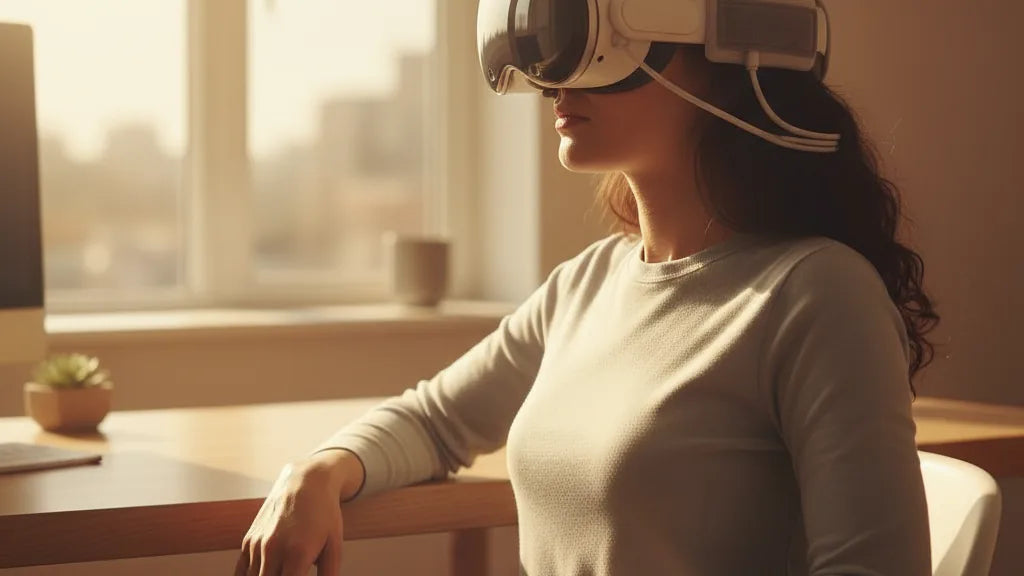
If long VR sessions leave your neck aching or your face sore, you don’t need to gut the headset or risk the warranty to make the Quest 2 feel lighter. With a handful of reversible swaps — smarter straps, rear counterweights, better padding and tidy cable routing — you can dramatically change how the headset sits on your head without opening the shell or touching internal components. ⏱️ 11-min read
This guide walks Meta Quest 2 owners through safe, non-invasive tweaks that improve perceived weight and balance. I’ll explain what actually voids a warranty, how balance matters more than raw grams, which strap styles to consider, proven counterweight and battery-pack ideas, step-by-step installs, face-pad and glasses-friendly tweaks, testing methods, compatibility caveats, and maintenance tips so your adjustments stay comfortable and warranty-safe.
What voids the Quest 2 warranty — rules to follow
Before any mod, read Meta’s warranty page. In plain terms, the warranty covers manufacturing defects but not damage from unauthorized alteration or user error. The quick rules: don’t open the headset shell, don’t tamper with or replace the internal battery, don’t solder or cut internal wiring, and don’t remove serial stickers. Water damage and DIY-caused cracks are also excluded.
That said, Meta doesn’t forbid external accessories. Swapping straps, adding external pouches, changing the facial interface, cleaning, and using third-party, non-invasive accessories are generally safe — so long as you don’t force parts, stress ports, or use attachments that damage the headset. If a third-party accessory causes a failure, Meta may deny warranty service, so prefer reputable makers and keep receipts.
Practical precautions: always keep original parts and packaging, document your reversible swaps with photos, and test accessories on a temporary basis before committing. If you’re unsure whether a particular accessory could interfere with cameras, sensors, or seals, check Meta support or the vendor’s compatibility statement. When in doubt, don’t open the device — external solutions are the safe boundary.
How weight, balance, and centre-of-gravity affect comfort
People often fixate on “making the headset lighter,” but comfort is more about balance and centre-of-gravity than total mass. The Quest 2’s electronics and display concentrate weight at the front. That front-heavy layout creates a forward-pulling torque around your neck’s pivot point, which feels like extra weight even if the grams don’t change.
Perceived weight is the sensation of load and torque. Move the centre-of-gravity closer to the natural pivot (the midpoint of your head) and the headset feels substantially lighter because less muscle force is required to resist forward tilt. That’s why adding a modest counterweight at the back or switching to a halo/cradle strap often yields more comfort than trying to shave off a few grams.
Poor distribution also leads to pinpoint pressure: nose pinch, forehead digging, or cheekbone pressure. These are not always solved by a cushier pad — they require redistributing load. In short, you can’t change the headset’s internals without risk, but you can change where the weight sits relative to your head. Small adjustments in strap geometry or a 40–100 g counterweight can transform an uncomfortable session into a comfortable marathon.
Choosing a strap: halo, cradle, and Elite-style options (selection checklist)
Choosing the right strap is the single most impactful purchase for comfort. Three mainstream designs dominate: halo, cradle (or pad), and Elite-style rigid straps. Each moves load differently, so pick based on how you feel pressure and how active your use is.
- Halo straps wrap around the forehead and often include a top tension band. They move weight off the face and distribute it to the crown and back, good for long, seated sessions and smooth weight transfer.
- Cradle or pad straps use a wide padded band that cups the back of the head. They’re lightweight and breathable, great for casual play and lower-cost upgrades.
- Elite-style straps (like Meta’s official Elite Strap) are more rigid and often use a rear tightening dial. They offer precise fit and excellent stability for active movement and standing experiences.
Selection checklist — what to look for:
- Rear counterweight pocket or the ability to add one (essential if you want to balance without changing hardware).
- Micro-adjustability: dials, velcro anchors, or quick-release clips that let you fine-tune tension.
- Comfort materials: breathable padding, low-profile foam, and fabrics that don’t trap heat.
- Glasses accommodation: a top or side adjustment that maintains seal without squeezing spectacles.
- Easy, tool-free installation and removability so you can return to stock quickly for warranty or resale.
Safe options to consider: Meta’s official Elite Strap, the Elite Strap with Battery (if you want integrated power and counterweight), and reputable third-party halo or cradle models with documented Quest 2 compatibility. Avoid DIY attachments that require drilling or permanent glue.
Low-risk counterweights and battery-pack hacks (safe, reversible fixes)
Adding weight to the back of the strap is a tried-and-true method to neutralize forward pull. Do this externally and reversibly: use a small zip pouch, a Velcro-backed counterweight, or a purpose-built rear pocket. The mass doesn’t need to be large; many users find 40–80 grams is enough to restore balance.
Battery packs are a particularly clever two-for-one solution: they serve as counterweight and extend run time. Choose a compact power bank — for example, a slim Anker 5,000–10,000 mAh model — and attach it in a rear Velcro pouch. Connect via a short USB-C cable and route the cable along the strap so it lies flat without tugging on the Quest’s port. Use cable clips, elastic loops or magnet clips to secure the line and avoid stressing the headset’s connector.
Steps for a safe battery-counterweight setup:
- Pick a small power bank (lightweight, not bulky), and test its weight in your hand to estimate balance.
- Attach a Velcro or fabric pouch to the rear of the strap — use existing strap loops or an aftermarket counterweight pouch designed for VR straps.
- Place the power bank in the pouch and close securely. If you need adjustability, add small coin weights in a removable zip bag.
- Route the USB-C cable along the strap using clips; don’t pull or force the port. Disconnect when not in use.
Alternatively, buy Meta’s Elite Strap with Battery — an official, warranty-friendly option that integrates power and rear mass. Avoid opening the Quest 2 or tapping into its internal battery; that’s the warranty line you can’t cross.
Step-by-step install: swapping to a comfort or Elite-style strap (for beginners)
Upgrading to a comfort strap is usually tool-free and reversible. The following is a generalized install flow; always follow the vendor’s instructions for the exact product you purchased. Gather original straps and any screws/clips that came with the headset so you can revert to stock if needed.
- Power down the Quest 2 and place it face-up on a soft, clean surface to protect lenses.
- Locate the side strap anchors where the stock strap clips in. Press the release tabs and gently pull out the side straps. Don’t yank; a firm, even pull should free them.
- Unpack the replacement strap. Inspect connectors and compare to the headset anchors. If there are extras (screws, plastic anchors), set them aside in a labelled small bag.
- Align the new strap’s connectors with the headset anchors. Slide or snap them into place until you feel a click. If the kit uses screws, follow the manufacturer’s torque guidance — don’t overtighten.
- Once attached, sit and put the headset on. Start with a loose fit, then tighten the rear dial or Velcro straps until the headset sits flush against your face without digging. Use the top strap for minor front-back tilt adjustments.
- Test stability by moving your head quickly and trying a short VR clip. If it shifts, micro-adjust the dial and top strap tension until it remains stable without excessive pressure.
Keep the original strap, screws, and packaging in a safe place. Photographs of the original setup help if you ever need to show the device state for warranty or resale. This method keeps everything reversible and warranty-safe.
Padding, facial interfaces, and glasses-friendly tweaks
Face padding and the facial interface significantly influence pressure and perceived weight. The stock foam works, but replaceable interfaces can reshape contact points, improve hygiene, and alter how the headset transfers force to your face.
Reversible facepad swaps: choose premium covers from reputable makers (VRCover-style PU leather or breathable fabric options) that attach without adhesive. Thicker pads can increase cushion and reduce cheek pressure; thinner options add distance between your eyes and lenses and can reduce eye strain for some users. Silicone gaskets create a softer seal and are easy to remove for cleaning.
Glasses users should always use the included glasses spacer. Additional tweaks include slim silicone spacers or raised foam inserts that create more clearance without deforming the plastic casing. Make small spacing changes and test; too much distance can change IPD feel and light seal.
Other reversible padding tips:
- Use moisture-wicking fabric covers for long sessions to reduce sweat build-up.
- Apply thin foam strips at targeted pressure points (forehead or nose) rather than bulk padding everywhere; this keeps weight distribution stable.
- Swap pads after heavy use; worn foam compresses and changes fit, often causing renewed pressure and worse balance.
Importantly, avoid gluing anything to the headset or forcing thicker pads that push against the casing; stay within items designed for easy removal so your warranty and camera seams remain untouched.
How to measure and tweak balance — a testing checklist
Iterative testing is how you dial in a comfortable setup. Start with short checks and build up to long sessions, tracking simple metrics so improvements are measurable.
Use this practical checklist:
- Initial fit test (1–2 minutes): Put on the headset and note immediate pressure points (nose, forehead, cheeks). Adjust top strap and rear dial for a neutral feel — not tight, just stable.
- Forward-tilt test: Tilt your head down and back slowly. If the headset wants to pull forward, add rear weight or tighten the rear strap. If it wants to rock backward, reduce rear weight or loosen the top strap.
- Movement test (5 minutes): Play an actively moving demo or free-roam environment. Look for sliding or rotation. If the headset shifts, increase strap tension or stabilize with a halo-style anchor.
- Endurance test (15–30 minutes): Track “minutes until discomfort” and note where discomfort appears. Log results: baseline (stock strap) vs new setup. Record where pressure is felt and whether it’s reduced.
- Refinement: Move rear weight small amounts (10–20 mm) forward/back in the pouch; add or subtract 10–30 g increments until torque is minimized. Small changes often yield significant comfort gains.
Quantify improvement by recording minutes until first soreness and the nature of that soreness. Aim for a progressive increase in tolerance: if you double your comfortable session length and reduce frontal pressure points, the mod is working. If you introduce new problems — sliding, camera obstruction, or cable tugging — revert and reassess.
Compatibility, trade-offs, and when to avoid a DIY mod
Every mod involves trade-offs. A heavier rear battery improves balance but increases total carried mass and heat. A rigid Elite-style strap offers excellent stability but can feel bulkier and be pricier. Third-party halo straps can provide superb comfort but vary in fit across head shapes.
Compatibility notes: not every accessory fits every Quest 2 revision. Watch for parts that block the passthrough cameras or interfere with tracking. Some accessories marketed for other headsets (for example, items designed for Apple Vision Pro like the FlitLift GraviPro) may look promising but are not compatible with the Quest 2’s anchors and sensors.
Red flags — stop and revert if you see any of the following:
- Accessory requires cutting, drilling, or permanent glue to attach.
- Cables tug on the Quest 2 charging port or require you to force the connector.
- Accessory obstructs cameras, IR sensors, or vents (risking tracking issues or heat buildup).
- Strap seams or attachments deform the headset plastic or press on serial stickers.
If at any point your headset displays faults that coincide with a mod, remove the accessory and test stock configuration. When in doubt, consult Meta support — reversible, external changes are usually safe, while anything that touches the internal hardware is not.
Care, cleaning, and maintenance to keep the headset feeling light long-term
Comfort isn’t a one-time fix; it’s a habit. Regular maintenance keeps padding springy and straps resilient, which preserves the fit and balance you worked to achieve.
Cleaning tips:
- Follow Meta’s official cleaning guidance: use a microfiber cloth and isopropyl-alcohol wipes sparingly for non-porous parts; avoid soaking foam. Remove aftermarket covers and wash according to their instructions.
- Wipe down straps and pouches after heavy use; sweat and oils compress foam faster and can shift padding geometry.
- Replace foam and elastic when they lose resilience. A compressed nose pad or a sagging strap changes the center-of-gravity and brings back pressure points.
Storage and upkeep:
- Store the headset on a stand or flat, padded surface to preserve strap shape; hanging by a thin top strap can deform padding over time.
- Check Velcro and clips frequently; loose Velcro means your rear weight slips and balance changes mid-session.
- Keep spare parts and original packaging for warranty or resale. If you plan to sell or service the unit, a stock, original setup is easier to handle.
Revisit your fit every few months. Small wear-based shifts are normal; a quick re-adjust or replacing a thin foam strip often restores days of comfort. With routine care and reversible mods, you can sustain comfortable, long VR sessions without ever breaching the warranty.
Next step: pick one reversible change — a rear Velcro counterweight or a halo/Elite-style strap — and follow the install and testing checklist above. Start light, test, and iterate; comfort improves fastest with small, deliberate adjustments rather than big irreversible changes.







Share:
How to install and adjust the Quest two comfort strap for a secure fit
Lightweight VR Design: Materials and Engineering That Reduce Headset Mass