

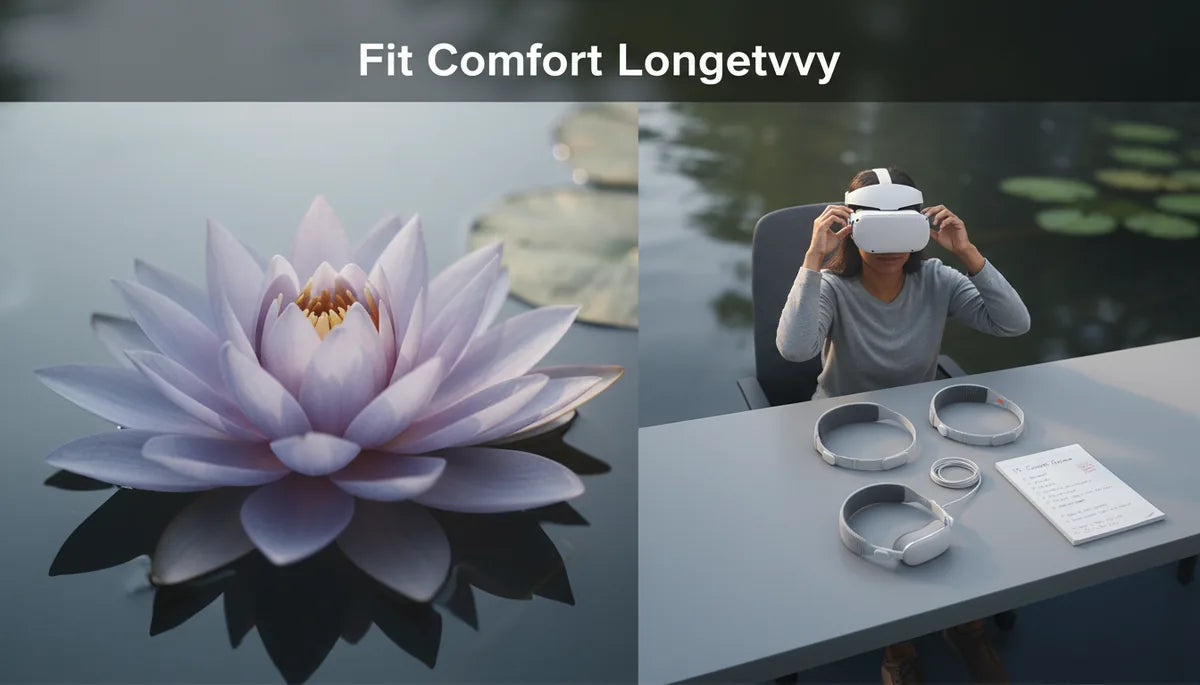
How to Adjust Your Quest 2 Strap for Maximum Comfort During Long Sessions
If you regularly binge VR sessions or simply want to stop removing your Quest 2 after 20 minutes because of cheek pain, this guide is for you. It walks through a measurement-driven, practical approach to identify pressure points, choose the right strap, install it correctly, and fine‑tune fit and weight so you can play, work, or create for hours without discomfort. ⏱️ 10-min read
Each section gives concrete actions—how long to wear the headset for a baseline read, where to place padding, how much rear counterweight to start with, and maintenance steps to keep your setup healthy. Follow the steps in order and test incrementally; small changes often make a big difference.
Assess Baseline Comfort: Identify Pressure Points and Fatigue Patterns
Start by establishing a baseline. Put the Quest 2 on for a deliberate 15–20 minute session doing the kind of activity you normally do—gaming, exploration, or standing workouts. During and immediately after, map where you feel pressure, slippage, or fatigue. Common pressure zones are the forehead where the top strap presses, the cheekbones where the facial interface contacts, and the back of the head where the strap tightens. Note any red marks, numbness, pinching, or rubbing.
Track fatigue signs too: headaches, aching temples, a tight jaw, or a sore neck indicate poor distribution. If you feel persistent irritation under the strap, you’re likely pressing too hard or rubbing a seam. Before you change anything, perform a controlled fit check: loosen all straps, don the headset, then tighten slowly until stable. Leave about a finger’s width between strap edges and your skull where the top band sits; that small gap helps you avoid overtightening by feel.
Keep a short log—time worn, activity, and three comfort notes (pressure zone, symptom, and what felt better or worse). This measurement habit turns guesswork into repeatable adjustments and helps you evaluate upgrades like the Elite Strap or a padded third‑party halo.
Compare Quest 2 Strap Options: Elite Strap, Elite Strap with Battery, and Third-Party Alternatives
Choosing the right strap sets the ceiling for comfort. Here’s a practical comparison so you can match features to your needs and budget.
- Official Elite Strap: A sturdier harness than the stock band with added side padding and a redesigned rear support. It improves fit stability and spreads load away from the forehead. Micro-adjustable sliders make incremental tensioning straightforward. If you want improved comfort without much added bulk, this is the baseline upgrade.
- Elite Strap with Battery: Adds a built‑in battery pack at the rear, which extends playtime and shifts mass back. The rear mass helps counter the Quest 2’s front‑heavy bias, reducing cheek pressure and neck pull during marathon sessions. Expect to re‑tune strap tension after installation because the balance changes as you move.
- Third‑party options (BoboVR, Kiwi Design, FlitLift, etc.): These range from wide padded halos to modular systems with removable back pads and counterweight mounts. Third‑party straps can outperform official accessories on padding and ergonomics, but verify build quality, warranty, and compatibility with accessories like headphones or battery banks.
When comparing, weigh four factors: padding quality (dense foam vs thin fleece), adjustability (micro sliders or a dial), added weight (battery or heavy mounts), and accessory accommodation (rear flat surface for batteries or headphone routing). If you prioritize long sessions and battery life, the Elite Strap with Battery often hits the sweet spot. If you prefer modular choices—lightweight tethering or custom counterweights—a third‑party strap may be more flexible.
Install Your Comfort Strap: Step-by-Step for Beginners
Installing a replacement strap is simple when you follow safe removal and alignment techniques. Rushing can stress the attachment posts; use deliberate motions.
- Power down the headset and place it face-down on a soft, clean surface so the lenses aren’t stressed.
- Locate the release tabs where the original strap connects. Press the tab and slide the strap straight out from the post—avoid angling or tugging to prevent bending the latch.
- Inspect the new strap connectors. Check left/right orientation and ensure any rear pad or battery housing will sit flush against the headset shell.
- Align each connector with its post and press until you feel or hear a click. If it resists, remove and re-align—don’t force it. Many third‑party straps use the same mounting geometry, but double‑check the fit.
- With the strap attached, perform an initial symmetry check. Hold the headset level and confirm the top strap runs centered over the crown and the rear pad sits evenly.
Initial fit: loosen all adjustments, put the headset on, and tighten side straps evenly until the headset stays put during head turns. Don’t aim for “squeaky tight” — the goal is stability without pressure. If your strap has a dial or micro‑adjusters, make small 1–2 notch changes and retest.
Finally, test with motion: lean forward and look up/down to ensure nothing slips. This step reveals asymmetric seating or misaligned pads that are easy to fix before a long session.
Fine-Tune Fit: Adjust Strap Height, Length, and Pad Position
Fine tuning is where comfort improves dramatically. Tackle adjustments in small increments and recheck with movement after each change. The three controls to master are top strap height, side strap tension, and rear pad position.
Top strap height and forehead pressure: Center the top strap along your crown and loosen it so you can slide it. Move it upward if the visor tilts and pinches your forehead, or lower it if the front feels like it’s pulling. The objective is even forehead contact across the entire pad rather than a single pressure point. After each shift, don the headset for 1–2 minutes and note any hot spots.
Side strap tension (left and right): Tighten evenly until the visor doesn’t slide down during quick head turns. Use a slow tightening approach—one click or notch per test—and stop when you feel snug rather than squeezed. Red marks on cheeks or temples after five minutes indicate over‑tension; back off a notch.
Rear cradle or pad position: The rear pad should sit near the occipital bone (the base of your skull) to help carry load. Sliding the pad up slightly raises the crown contact area and reduces forehead pressure; sliding down increases rear contact and can reduce cheek pressure. Small shifts—5–10 mm—often change comfort more than you’d expect.
Practical routine: after initial fit, run a 30‑minute play test with minor tweaks every 5–10 minutes. Keep a note of which micro‑adjustment improved comfort. Over time you’ll learn a preferred crown height and side tension that suits your head shape and session length.
Weight Distribution and Counterweights: Reduce Neck Strain
Because much of the Quest 2’s mass sits in the visor front, it naturally pulls forward. Counterweights or rear-mounted batteries shift that mass rearward and significantly cut neck strain and cheek pressure. The trick is to start light and tune to balance.
Understand the front‑heavy pattern: when the visor pulls down, most users compensate by tightening the side straps, which increases pressure on cheeks and temples. That tightening can cause headaches and shift lenses. Instead of creating more tension, move mass backward.
Counterweight options: commercial rear-mounted weights, compact battery packs, or DIY solutions like small fishing weights or washers secured with Velcro work well. Start with about 15–30 g (0.5–1 ounce) at the rear as a baseline. Add weight in small steps—15 g increments—until the headset feels evenly balanced without sliding.
Placement and tuning: attach weights near the rear pad at the occipital area. If lenses drift forward, move weights slightly higher on the strap; if they ride too high on the forehead, lower the weights. The goal is stability during head movement without raising pressure elsewhere. If you use a battery pack, route the cable away from the neck and secure it flat against the strap to avoid pressure points.
Mini‑case: one user added a 150 g rear counterweight to a wide padded halo and reported less neck fatigue after 60–75 minutes and improved lens stability. Another achieved similar relief by using a smaller rear pad and a 30–60 g weight—showing that distribution and placement usually beat raw mass.
Glasses-Friendly Setup: Comfort for Spectacles
Wearing glasses in the Quest 2 is common and entirely manageable, but it requires mindful setup to avoid lens contact, fogging, and pinching. Use the Quest 2 glasses spacer and fine‑tune strap tension with an eye toward clearance rather than tightness.
Install the glasses spacer: remove the foam face gasket, sit the spacer into the groove behind the facial interface, and replace the pad. The spacer creates extra room for frames and reduces the likelihood of lenses pressing into your glasses. After installation, put the headset on and check that the lenses don’t touch frame arms when you blink or tilt your head.
Adjust tension carefully: start with everything loose. Tighten the top strap first until the visor feels centered, then tighten the side straps evenly. The headset should feel secure but not press your glasses into your nose. If your glasses contact the lenses or fog, ease side tension or reseat the spacer one notch outward at the nose area.
Consider prescription lens inserts: if you wear glasses frequently, a prescription insert eliminates frame contact and reduces fogging. Inserts mount directly in front of the headset lenses and avoid pressure points entirely. They’re especially helpful for long sessions or for users who can’t achieve comfortable clearance with the spacer alone.
Practical test: look straight, then up and down and twist the head gently. If the glasses shift relative to your eyes, adjust the spacer or strap. Small changes in strap height or spacer position often solve problems without resorting to prescription inserts.
Maintenance and Longevity: Cleaning, Inspection, and Replacement Timing
Comfort degrades when foam compresses, straps stretch, or clips weaken. Regular cleaning and inspection keep your setup performing and reduce surprises during long sessions.
Cleaning by material:
- Fabric straps: hand wash in lukewarm water with mild detergent, rinse thoroughly, and air‑dry flat out of direct heat.
- Silicone parts: wipe with a damp microfiber cloth and mild soap, rinse, and dry fully before reinstalling.
- Leather or faux‑leather: wipe with a damp cloth and follow with a light conditioner; avoid soaking.
Inspection routine: once a month check stitching, seams, and attachment clips. Look for frayed threads, split silicone, or loss of elasticity. Test clips by removing and refitting the strap—if you hear or feel looseness, it’s time to replace. Persistent odors after cleaning or visible cracks are signals to retire the component.
Replacement thresholds: swap straps or pads if you see cracks wider than 1 mm, seams that no longer hold, or if the padding no longer springs back. A loose clip or failing slider should be replaced immediately—failure during use can lead to drops and damage. For marathon users, consider keeping a spare foam pad and a backup strap so you can swap in a fresh component before long sessions.
Compatibility and Accessories: Third-Party Straps, Wireless Gear, and Cross‑Device Notes
Before buying third‑party straps or accessories, verify mechanical compatibility, how accessories mount, and whether warranties are affected. Not all straps behave the same with audio gear, battery packs, or wireless dongles.
Key checks:
- Mounting points: confirm the strap seats correctly on the Quest 2 posts and that any rear pad won’t block ventilation or sensors.
- Accessory clearance: if you use a back‑mounted power bank or headphones, choose a strap with a flat rear surface or designated mounting points to avoid pressure points or cable pinching.
- Wireless streaming: bulky straps can snag on dongles or add wobble while moving. Route cables along the strap and secure with Velcro to keep the setup tidy.
- Cross‑device notes: headsets change form factors; accessories for Quest 2 may not work on newer headsets without adapters. If you plan to upgrade soon, prefer modular straps that let you remove key parts or reuse pads and counterweights.
Practical tip: when integrating a rear battery pack, test your full play routine (sitting, standing, quick turns) with the pack in place. Confirm that any USB passthroughs or audio attachments don’t conflict with strap clamps. If you’re unsure about warranty impacts or mechanical fit, consult the manufacturer or look for verified user photos showing the same accessory combination.
Next step: do a controlled 60–75 minute session using your tuned setup, log comfort data, and adjust only one variable at a time (strap height, side tension, or weight). If discomfort persists after careful tuning, consider a different strap design or a prescription insert to solve frame contact issues.







Share:
Quest 2 and glasses: optimizing strap pressure and lens clearance for comfort
How to choose the right Meta Quest 2 comfort strap head cushion materials and comfort levels