

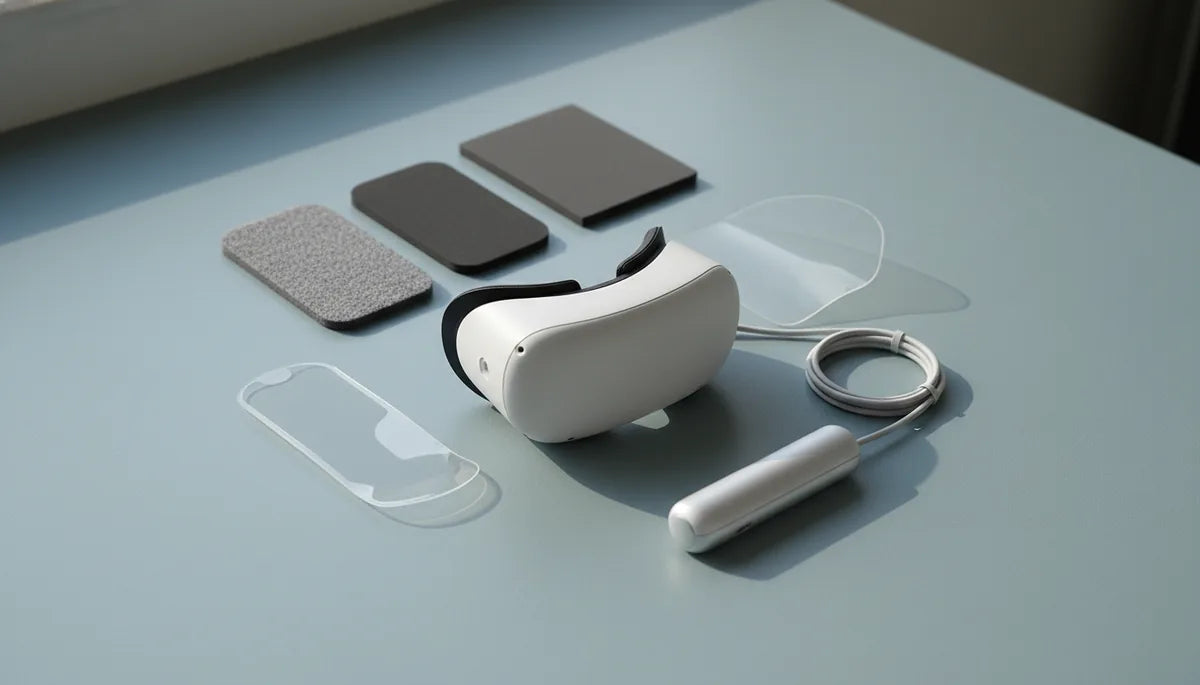
Face-Shape Friendly Quest 2 Comfort: Padding and Gasket Tweaks for Marathon VR
Long sessions in a Quest 2 can be magical — until the headset starts digging into your nose, cheeks, or temples. This guide gives practical, face-shape–aware advice for choosing and fitting padding, gaskets, and straps so you can play, create, or watch for hours without constant readjusting. Expect concrete recommendations for materials, thicknesses, installation steps, strap tuning, troubleshooting, and care routines that preserve comfort over time. ⏱️ 12-min read
Determine your face-shape needs and padding goals
Start by mapping how the Quest 2 currently sits on your face. Most people fit into a few broad categories: wide faces with fuller cheeks, narrow faces with slim cheeks, long faces where the nose bridge is set lower, and those with high or prominent cheekbones. Each shape shifts where the gasket seals and where pressure concentrates. A quick post-session check — looking for red marks, sore spots, or light leaks — will tell you what needs changing.
Run a short diagnostic after a typical 30–60 minute session. Note where marks or discomfort appear: are they along the cheeks, across the nose bridge, near the temples, or under the forehead? Also check for light leaks along the sides or above the nose; a gap that lets in light usually means an uneven seal. These observations let you set measurable goals: reduce nose burrs so no red mark after 60 minutes, eliminate side light leak while keeping glasses clearance, or reduce forehead pressure without worsening fogging.
With goals in hand, think in terms of three adjustable variables: gasket height/contour (how much it fills gaps), foam density (how pressure is distributed), and surface material (breathability and hygiene). For example, if you want nose relief without losing seal, aim for a thinner nose gasket (1–2 mm profile change) but slightly deeper cheek contours. For glasses wearers, prioritize thinner high-precision contours and confirm adequate eye relief before committing to thick padding.
Padding and gasket options that boost comfort
Choosing the right material and profile is a balance: seal, comfort, weight, and hygiene. Here are the common options and when they shine.
- Silicone gaskets: Non-porous and easy to wipe, silicone creates a consistent seal and resists sweat and oils. Good for heavy users and shared headsets because they’re simple to sanitize. They can feel firmer against the skin, so look for models with soft inner lips or add a thin foam layer for cushion.
- Memory foam inserts: Contour to facial irregularities and distribute pressure well. Memory foam with a PU leather or fabric wrap gives a soft interface that reduces facial marks. Beware that thicker memory foam can reduce eye relief; choose targeted inserts for nose or temples rather than full-thickness swaps if you wear glasses.
- EVA and closed-cell foam: Firmer and more durable than memory foam. They keep their shape longer and are better for users who need consistent eye relief or use prescription lens inserts. EVA is less absorbent than open-cell foam, improving hygiene.
- PU leather and fabric wraps: PU leather wipes clean and feels smooth on the skin. Fabric wraps breathe better but absorb sweat and need more frequent washing. For anti-fogging and marathon sessions, a PU leather surface is often more practical.
Profile matters as much as material. Thin gaskets (1–2 mm effective change) reduce nose pressure but maintain a tight seal for users with narrow faces. Mid-thickness contoured gaskets (3–5 mm) follow cheekbones and brow curves to close peripheral gaps without pushing lenses in. Thick gaskets (6–8 mm) increase eye relief and create room for glasses or prescription lens inserts; they’re useful for wide faces but can increase perceived headset distance from the screen.
Many third-party vendors offer modular solutions: silicone sleeves for quick seal changes, narrow memory-foam nose inserts to target a single hotspot, and wrap-around PU leather cushions for general comfort. Mix and match: a silicone outer sleeve for sealing plus a thin memory-foam strip at the nose can keep fog down while eliminating pressure.
Step-by-step Quest 2 comfort strap and padding installation
Swapping gaskets and straps is straightforward if you take your time and follow a methodical sequence. Here’s a practical, careful procedure to avoid damaging clips or misaligning seals.
- Power down and prepare: Turn off your Quest 2, unplug cables, and work on a clean flat surface. Have a small tray for any screws or clips you remove.
- Remove the stock facial interface: Gently pull the stock facial interface away from the headset. Most snap out with steady pressure; avoid forcing any corner where clips may be engaged. If your kit has screws, label them and store in the tray.
- Clean the mounting plane: Wipe the headset rim with a lint-free cloth dampened with a mild, VR-safe cleaner to remove oils and dust. This helps new adhesive-backed gaskets seat firmly and prevents uneven seals.
- Align the new gasket: Place the gasket starting at the nose bridge and work outward. If your replacement uses snaps, line them up before pressing firmly. For adhesive-backed pads, remove a small portion of the backing, press the nose area in place, then peel and press outward to avoid wrinkles.
- Seat evenly: Press along the entire perimeter, ensuring the gasket sits flush with no gaps. Check the nose area specifically — a common failure point for leaks. Avoid bending or creasing foam; smooth, uniform contact preserves the intended contour.
- Install the strap: Attach a replacement strap or the original strap to symmetrical anchor points on each side. If you’re installing an Elite-style strap, use the manufacturer’s instructions for the rear pad and latch system. Start with medium tension.
- Test and iterate: Put the headset on and assess fit while it’s powered off—feel for pressure, tilt, or imbalance. Power on and check lens alignment. Make small adjustments: tighten side straps to stabilize, then use the top strap to fine-tune lift to reduce forehead pressure and prevent forward tilt.
Take notes: small changes (a few millimeters of pad thickness, a quarter-twist of strap tension) can make outsized differences. If you encounter light leaks, remove the gasket and double-check seating around the nose and temples; uneven adhesion or trapped debris is usually the problem.
Elite Strap vs standard strap and where padding helps most
The strap you use determines how the headset weight transfers to your head — and that changes where padding will make the biggest difference.
The stock elastic strap is light and simple but tends to concentrate load at the forehead and nose because it lacks a robust rear anchor. That concentrated pressure can create fatigue and red marks after longer sessions. With the standard strap, small targeted pads are the most effective fixes: a slim forehead pad to spread contact area, thin temple cushions to reduce pinch, and a narrow nose-bridge strip to prevent rubbing. Keep padding narrow so it doesn’t push the strap off its anchor points.
The Elite Strap (or aftermarket rigid/halo-style straps) redistributes a sizable portion of the headset’s weight toward the back and sides of the head. This reduces nose and brow pressure and stabilizes alignment during motion. Where padding helps with an Elite Strap is primarily in long-duration comfort: add soft crown padding to limit rebound fatigue and consider thin cheek cushions to reduce slip when you turn your head quickly. Because the Elite Strap already reduces frontal pressure, you can often use thinner facial padding and gain better cooling and lens proximity.
For both strap types, the rule of thumb is to target padding where it solves a problem: if the headset tilts forward, beef up rear crown support rather than tightening the front and increasing nose pressure. If you feel temple squeeze, try slim, low-profile temple pads to redistribute contact rather than huge forehead pads that alter eye alignment.
Fine-tuning height, strap length, and fit for all-day wear
Comfort for extended sessions is iterative: adjust, test, and refine. Use a methodical approach so small tweaks compound into big improvements.
First, set lens alignment. With the headset on, ensure the lenses are centered vertically and horizontally relative to your pupils. Tilt adjustments are crucial — if the bottom edge of the headset digs into your nose, raise the top strap by small increments until the lenses sit level. Good lens alignment prevents pushing the headset forward during play.
Second, balance the straps. Tighten the side straps only enough to keep the headset from sliding; then use the top strap to set the vertical position. This moves the load toward the crown and away from cheeks and nose. If the headset still leans forward when you bend, add or thicken rear crown padding a few millimeters to create a counterlever effect.
Third, test under motion. Play a VR demo with head turns and quick movements to detect unwanted tilt or slip. Make one small change at a time, wear for five to ten minutes, and note comfort. For marathon sessions, schedule micro-breaks to let skin recover and reposition foam or gasket lips if needed.
Specific micro-adjustments that often help:
- Raise the rear strap 5–10 mm to reduce nose pressure without changing side tension.
- Add 1–3 mm of rear crown padding if forward tilt persists after strap tweaks.
- For glasses wearers, slightly loosen side straps and increase top strap tension to lift the headset away from cheekbones while preserving lens center alignment.
Weight, balance, and techniques to reduce headset load
Perceived weight is as important as actual weight. Distributing that mass smartly reduces strain and keeps immersive experiences enjoyable for hours.
Padding strategy is your first lever. Use softer padding where contact is painful and firmer pads where you need stable positioning. For example, a slightly firmer rear crown pad spreads weight across a larger area, lowering pressure points even if total tension is the same. Thin foam strips behind the ears can also stabilize lateral movement without adding thickness against the face.
Counterweights and battery packs are the next level. A small rear-mounted counterweight (or a rechargeable battery pack) shifts the headset’s center of gravity rearward, balancing the front-heavy optics block. When adding weight, keep it low and centered on the rear strap to avoid creating new torque. Many aftermarket Elite Strap-compatible battery packs combine extra battery life with ergonomic rear weight distribution.
Optimize crown support. A well-shaped rear pad that cups the back of the skull and spreads load across the upper neck and crown will feel dramatically lighter than the same headset with a flat strap. Consider a curved memory-foam crown pad rather than a flat silicone disc to keep the headset stable during vigorous play.
Finally, minimize unnecessary tension. Frequent users tighten straps more than needed. Aim for security, not lockdown: the headset should be stable through head turns but not squeeze. The less you overtighten, the longer your face padding will remain resilient and comfortable.
Compatibility with third-party accessories and cross-ecosystem notes
The Quest 2 enjoys a thriving aftermarket, but not all accessories are equal. Look for products explicitly labeled for Quest 2 or Meta Quest 2 — these will match mounting points and curvature. Universal or “one-size” interfaces often require trimming or compromise and can introduce light leaks if they don’t conform to the headset’s rim.
When choosing third-party padding and gaskets, check these details:
- Attachment method: magnetic, snap, or adhesive. Magnetic interfaces are easiest to install and swap; adhesive can be permanent and harder to reposition.
- Profile match: ensure the replacement gasket’s depth and nose bridge profile reflect your face shape and lens spacing. Some vendors publish dimensions or provide multiple thickness adapters.
- Material compatibility: silicone sleeves should be soft enough to flex around the mask but firm enough to seal; foam replacements should be closed-cell or treated to resist sweat and oils.
Regarding cross-ecosystem accessories (for example, items marketed for Apple Vision Pro or other headsets), compatibility is hit-or-miss. Vision Pro accessories are designed to a different facial footprint and optical layout; they rarely fit Quest 2 without major modification. If a product advertises cross-compatibility, verify measurements and read reviews — users often note whether adapters or trimming were required.
One interoperability tip: prescription lens inserts from reputable third-party vendors are generally compatible across most Quest 2 padding swaps as long as the gasket provides sufficient clearance. When in doubt, measure eye-to-lens distance with the prospective gasket in place before buying lens inserts.
Maintenance, cleaning, and longevity tips for padding and gaskets
Comfort lasts when you look after materials. A simple routine keeps foams springy, silicone seals sanitary, and adhesives reliable.
- Daily care: After each session, wipe the contact surfaces with a VR-safe wipe or a cloth dampened with mild soap and water. For PU leather wraps and silicone, a quick wipe significantly reduces oils and bacteria build-up.
- Weekly deep clean: Remove removable foam covers and silicone sleeves. Clean foam covers according to manufacturer instructions — many PU leather and fabric covers can be gently hand-washed and air-dried. Never submerge glued foam inserts; instead spot-clean and air-dry completely before reassembly.
- Drying: Always let padding air-dry fully in a ventilated area away from direct sunlight. Heat can warp foam and degrade adhesives. Never use a hair dryer or forced heat source.
- Replacement cadence: Foam compresses over time. Expect to replace memory foam inserts every 6–12 months for heavy users, sooner if you see persistent indentations or firmness loss. Silicone sleeves last longer but replace them if the lip tears or hardens.
- Storage: Store your Quest 2 with padding in a cool, dry place, ideally on a headset stand that preserves the padding’s shape and prevents the gasket from folding or creasing.
Inspect mounting surfaces and adhesive-backed gaskets periodically. If adhesive weakens, a clean surface and a reapplication pad or low-residue double-sided tape can restore seating. For magnetic interfaces, check that magnets are clean and free of metal shavings or debris that can interfere with full seating.
Troubleshooting fit, pressure points, and light leaks
Solve common issues by matching symptoms to simple corrective moves. Here are quick diagnostics and fixes that resolve most comfort problems without buying new gear.
- Red marks on cheeks or nose: Add thin padding strips (0.5–1.5 mm) in the hotspot area to distribute







Share:
Official Meta Strap vs. Third-Party Alternatives: Which Keeps Wireless Accessories Balanced?
Anatomy of Meta Quest Weight: Balance and Comfort