

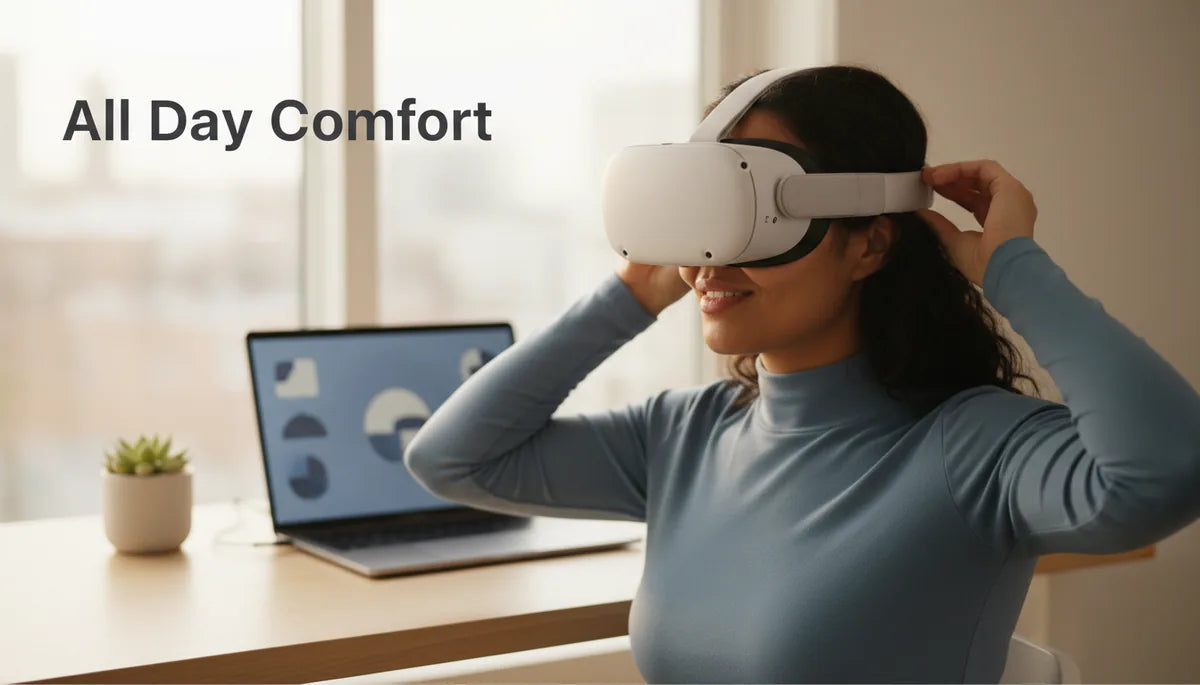
Glasses Wearers Rejoice: How to Rebalance Quest Two for All-Day Comfort
Wearing glasses shouldn’t mean cutting VR sessions short. The Meta Quest 2 is a fantastic entry to immersive experiences, but frames, temple pressure, and fogging often turn long plays into aches and irritation. This guide walks you through practical, tested ways to rebalance your Quest 2 for glasses-friendly all-day comfort—covering strap choices, quest-2-comfort-straps-for-better-weight-distribution" rel="nofollow noopener noreferrer">weight distribution, facepad swaps, lens protection, prescription inserts, and simple on-the-fly fixes. ⏱️ 11-min read
Think of this as a checklist and playbook: clear steps you can try in 10–15 minute blocks, quick diagnostics for what’s causing pain, and specific product- and technique-focused advice to protect your eyes and your lenses. By the end you’ll know how to reduce temple pressure, avoid scratches, balance the headset’s weight, and choose solutions that keep you playing longer and feeling better.
Assessing Comfort Strap Options for Glasses Wearers
The strap you use defines how the Quest 2 sits on your head—and that matters more when glasses are in the equation. The stock soft strap is lightweight and flexible, but it tends to let the headset tilt forward unless you tighten it, which can shove frames into your face. Third-party straps and official upgrades change that dynamic by moving weight and creating a more controlled fit.
When evaluating strap designs, watch for three things: adjustability, rear support, and clearance. Adjustable top straps let you alter tilt without over-tightening the sides, moving pressure away from temple arms. Rear-support straps or halo-style designs push weight to the back of the skull, balancing the front-heavy headset and reducing the tendency to clamp frames. Lastly, straps that pair with a thicker or contoured rear pad create a stable anchor so you don’t need to press the facepad into your glasses to keep the device steady.
Popular options include the Meta Elite Strap, various halo-style third-party straps, and modular comfort systems that add a rear pad or counterweight. Try them in short sessions: start with a 10–15 minute app, note whether the glasses move or the temples hurt, then tweak tension and tilt. The right strap reduces frame contact and keeps your spectacles sitting naturally—no digging or sliding required.
Weight and Balance: How Strap Changes Affect Quest 2 Comfort
Comfort isn’t only about padding; it’s physics. The Quest 2‘s lens housing and electronics create front-heavy torque that pulls on the nose and temples unless the strap redistributes that load. When you change straps or add accessories, you affect both static weight and balance—two separate but related contributors to fatigue.
A quick balance check: put the headset on with the strap snug but not tight. If the front feels like it’s tugging down or you find yourself constantly readjusting, you’re front-heavy. If the back lifts or the top strap bears most of the pull, you may be overcompensating. Walk through three adjustments: loosen side straps slightly and increase top strap tension to tilt the unit up a touch; add a rear pad or counterweight if the front still drops; finally, try a lighter facepad to reduce forward projection that exacerbates torque.
Small weight additions at the rear—commercial counterweights or even a purpose-built rear pad—do wonders. They create a lever arm that counters the front mass, letting you keep side straps gentler and preserving natural alignment for your glasses. Conversely, heavy aftermarket faceplates or accessories can worsen torque. Make changes incrementally and use short sessions to evaluate: balance adjustments that feel minor can drastically reduce temple compression and nose pressure over an hour of play.
Elite Strap vs. Oculus Comfort Strap: What Matters for Glasses Wearers
Two common upgrades users ask about are the Meta (Oculus) Elite Strap and a variety of comfort straps that promise better ergonomics. For glasses wearers, the deciding factors are fit, cushioning, and adjustability—how each strap affects clearance around the nose and temples, and whether it stabilizes the headset without forcing it onto your frames.
The Elite Strap adds a firmer rear band and a rigid side structure that reduces forward flex. That rigidity tends to improve balance because it keeps the lens housing aligned, so you can relax the side straps and reduce temple squeeze. Its downside: the stock Elite Strap’s pad is relatively simple; if you still feel nose pressure, pair it with a rear pad or swap in thinner face foam to increase lens clearance.
Comfort straps with a halo or halo-plus pad often distribute weight across a larger skull area and feel softer against the face. They can work exceptionally well with glasses because they minimize the need to tighten the side straps—the headset stays stable without clamping. When choosing between the two, test whether the strap lets you maintain a natural glasses fit: if frames are still pushed into the nose, try the halo style; if the unit still tilts forward, the Elite Strap’s rigidity can be the remedy. Prioritize straps that allow fine top-strap adjustments and pair nicely with spacers and interchangeable facepads.
Protect Lenses and Glasses: Tools and Habits
Protecting both your headset lenses and your glasses is essential for long-term comfort and cost savings. A scratched or smudged lens reduces clarity and can make you press the headset harder against your face. Simple habits and a few inexpensive tools prevent that downward spiral.
- Use the official glasses spacer: This snaps into the Quest 2 rail to create a small but critical gap between your frames and the headset lenses. It reduces rubbing during donning and doffing and greatly lowers the risk of coating wear.
- Adopt a cleaning routine: Wipe both headset and glasses with a microfiber cloth and a lens-safe solution. Use gentle, circular motions and avoid household cleaners or paper tissues that scratch coatings.
- Consider lens shields and hard cases: Thin protective films for glasses and headset lenses can prevent micro-scratches; store glasses in a hard case when not using them to avoid bends and bumps during travel.
- Anti-fog and storage tips: For humid sessions, an anti-fog wipe helps; when traveling, pack the spacer and a spare facepad in your case to preserve fit and prevent accidental contact during transport.
These low-effort steps extend the life of your optics and make each session feel clearer. Keep a microfiber cloth and spacer in your headset case—small investments that pay off every time you put the Quest 2 on.
Fine-Tune Fit Without Changing the Strap
You don’t need to buy new hardware to improve comfort. Small positioning tweaks often shift pressure points enough to transform an uncomfortable session into a comfortable one. The key is deliberate, repeatable changes—test, note, adjust.
- Tilt to redistribute pressure: A slight upward tilt moves contact from the temple arms to the forehead and upper cheekbones, while a slight downward tilt can relieve bridge pressure. Change in small increments and test in 10–15 minute intervals.
- Raise or lower headset height: Adjust the top strap to align the headset’s center with your glasses bridge. When the bridge sits near the middle of the facepad, the headset rests more naturally, reducing nose squeeze.
- Use the included glasses spacer or a thin shim: If you have the official spacer, install it to gain clearance. Without it, a carefully trimmed thin shim under the facepad can create the same effect—trim and test incrementally to avoid misalignment.
- Micro-adjust the side straps: Loosen the sides slightly while tightening the top strap for a lighter touch around the temples. This lets the rear support manage torque instead of clamping the frames.
Pair these tweaks with quick balance checks and short play intervals. Remember: small, deliberate changes are safer and more likely to identify the precise contact point causing discomfort. Keep a log of what you adjusted and how it felt—within a few sessions you’ll have a repeatable setup that works for your frames.
Swap Facepads and Foam for Better Glass Clearance
The facepad is the frontline between your glasses and the headset. Changing its thickness, shape, or material alters how close your lenses sit to the headset optics and can prevent pinching, fog, and pressure. There’s no one-size-fits-all; it’s about matching foam profile to frame shape and play style.
Thinner foam reduces forward projection and increases clearance, making it easier to accommodate thicker frames or wide temples. It’s especially useful if your frames brush against or touch the Quest 2 lens housing. Thicker foam improves the seal and cuts down on light leaks and fog, but it can push frames inward—so test before committing to long sessions.
Aftermarket options like VR Cover offer replaceable pads in varying thicknesses and materials, from breathable fabric to PU leather. Leather-style pads shift contact points (and heat retention), so try them for short periods first. Swap the pads and test in short bursts: start with the thinnest comfortable pad and increase thickness until you regain a pleasant seal without frame pressure. Clean pads regularly or keep spares in rotation to maintain hygiene and consistent fit.
Prescription Lens Inserts: Pros, Cons, and Installation
Prescription inserts are the gold standard for many glasses wearers. These custom or semi-custom lenses snap into the headset, letting you remove your glasses entirely. The result is reduced frame pressure, no temple pinching, and protection for your personal spectacles.
Reputable vendors include WidmoVR, VR Lens Lab, and XR Optics—each offers slightly different coatings, lens materials, and prescription workflows. Prioritize IPD compatibility and accurate prescription input; small errors in sphere, cylinder, or axis can produce blur or discomfort. Inserts work best if you wear single-vision distance or primarily use your glasses for far viewing. Progressive and bifocal wearers may need a tailored solution or to select an insert matched to their dominant VR distance.
How to install prescription inserts (step-by-step)
- Power off the headset and place it on a clean, soft surface.
- Clean the Quest 2 lenses and the inserts with a microfiber cloth and lens-safe solution to remove dust and smudges.
- If the kit includes a spacer, install it as instructed or remove the facial foam if directed by the insert manufacturer.
- Align the insert tabs with the corresponding slots in the Quest 2 lens frame. The insert should sit evenly and flush without gaps.
- Gently press the insert until it snaps into place—do not force or bend the tabs.
- Switch among the headset’s IPD positions and check alignment; some kits allow small micro-adjustments.
- Power on and load a short calibration app to confirm clarity and comfort before longer sessions.
Prescription inserts aren’t cheap, but they can dramatically improve comfort and protect your glasses. If uncertain, consult a vendor or fitter who can recommend the right depth, coatings, and IPD mapping.
Quick Case Examples: Solutions for Typical Glasses Profiles
Different frames and prescriptions need different approaches. Here are targeted suggestions that map common glasses profiles to practical solutions.
- Narrow nose bridge: Start with the official glasses spacer plus thin foam. The spacer lifts the headset slightly so the bridge isn’t pinched. If pressure persists, try a narrow-bridge insert or a slimmer, hypoallergenic pad to redistribute force.
- Wide frames or thick temples: Remove stock foam and try a flat, thin aftermarket pad that reduces forward projection. This creates lateral room for thick temple arms and makes it easier to use progressive-friendly inserts without crowding.
- Progressive or bifocal lenses: A custom insert matched to your primary distance is often the best route; it prevents the need to tilt your head excessively to find the sweet spot. Work with a fitter to dial in the insert for your most-used VR distances.
- Heavily rimmed or oversized frames: Halo-style comfort straps that redistribute weight, paired with a thin facepad and possibly prescription inserts, reduce temple pressure and improve balance without sacrificing peripheral view.
These are starting points—test each change in short intervals and combine approaches (strap + pad + spacer) as necessary. Small adjustments multiply: the right combo often eliminates the worst pressure points entirely.
Optimize Software, Lighting, Breaks, and Ongoing Maintenance
Comfort isn’t only mechanical—software settings, environmental conditions, and habits play a big role in eye strain and fatigue. Fine-tuning these elements reduces the pressure on your glasses and eyes during long sessions.
- Calibrate IPD precisely: Use the headset’s IPD steps and in-app calibration tools to align lenses with your pupils. Proper IPD reduces eye strain and makes the image clearer, lowering the urge to press the headset closer for clarity.
- Adjust brightness and UI scale: Lower screen brightness to a comfortable level and increase UI or font scale where available. Larger text eases squinting and reduces visual effort with corrective lenses.
- Use a break schedule: A rhythm like 20 minutes on, 5 minutes off helps eyes recover. During breaks, blink deliberately, look at distant objects, and perform simple eye relaxation exercises to reduce dryness and strain.
- Maintenance and travel prep: Keep a microfiber cloth and anti-fog wipes in your case. Pack the glasses spacer and a spare facepad when traveling. For quick fixes, a trimmed paper shim can gain extra clearance; just trim carefully to avoid misalignment.
Combine these software and habit tweaks with the physical adjustments above. The holistic approach—mechanical fit, lens protection, balanced weight, and good screen settings—keeps sessions comfortable and sustainable.
Final Takeaway: Start Small, Iterate, and Make Comfort Routine
If you wear glasses, the path to all-day Quest 2 comfort is iterative: start with the easiest changes (glasses spacer, tilt and top-strap tweaks), run short tests, then add strap or facepad swaps and—if needed—prescription inserts. Protect your optics, calibrate IPD, and build a brief break routine. With a few inexpensive accessories and measured adjustments, you can reclaim longer, clearer, and more enjoyable VR sessions without sacrificing your spectacles.
Next step: install the included glasses spacer, test a slight headset tilt and a 10–15 minute app, then decide whether a strap upgrade or thinner facepad is your fastest win. Keep a log of what you try—comfort is personal, but repeatable successes are just a tweak away.







Share:
How strap design affects balance choosing Quest 2 comfort straps for better weight distribution
How to Tighten the Quest Two Comfort Strap for Long VR Sessions: A Step‑by‑Step Tutorial